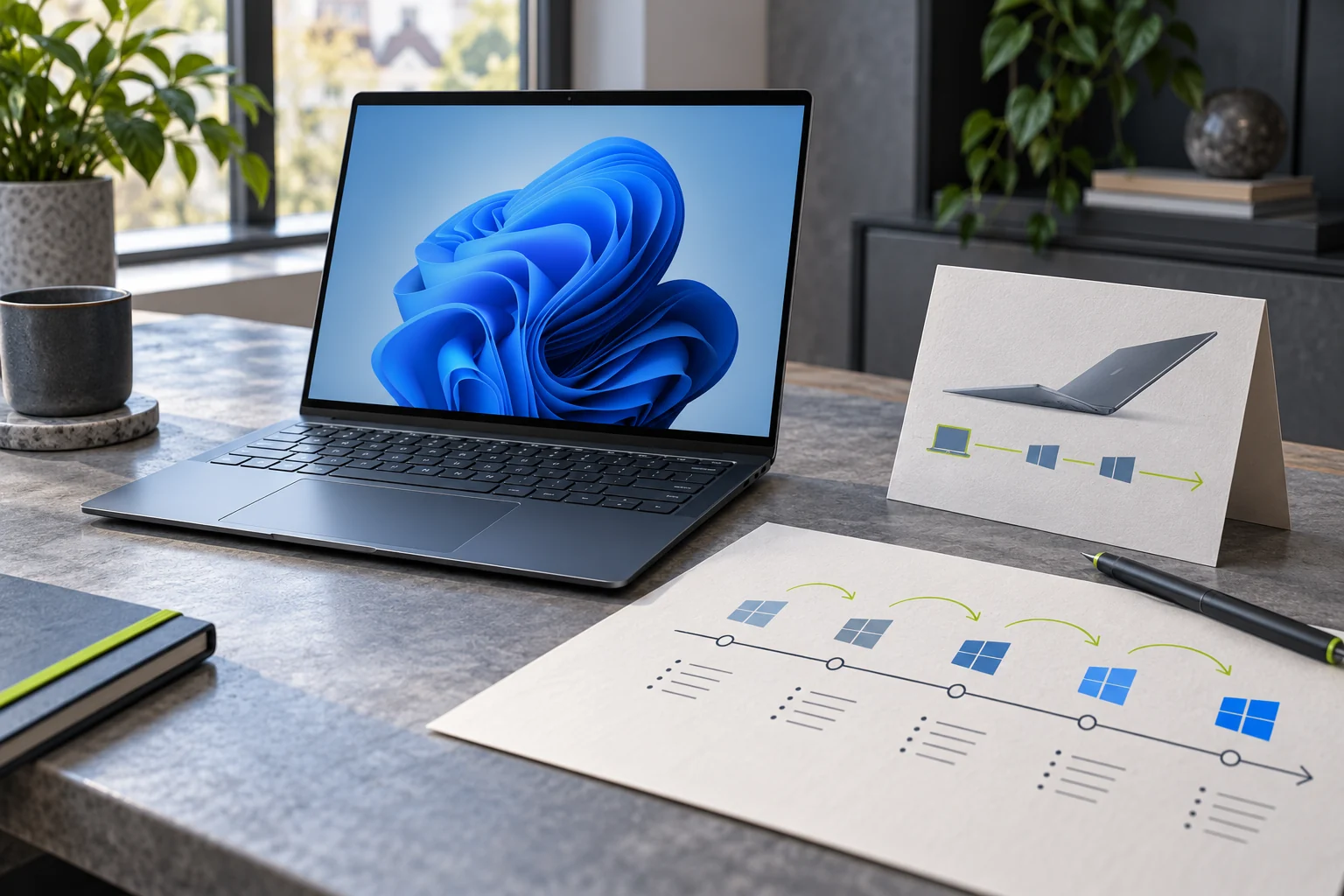
A version number that looks newer is not always a package every existing PC should install. Microsoft describes Windows 11 version 26H1 as a release for select new devices using next-generation silicon. It says the version is not designed for existing devices and is not offered as an in-place update from Windows 11 24H2 or 25H2. The distinction matters this fall, when the ordinary annual feature release follows a different path and forum posts can make 26H1 sound like a universal upgrade.
Quick scan
In brief
Microsoft says 26H1 is available only on select new devices and is not offered from 24H2 or 25H2 through Windows Update.
The first supported devices were described as using Qualcomm Snapdragon X2 series processors.
A current consumer PC should follow the version offered in Windows Update, not an unofficial ISO or a version-number guess.
The version label does not describe a universal installer
Microsoft’s product note says 26H1 contains the same features introduced with the 2025 Update, Windows 11 25H2, while enabling support for a selected next generation of silicon. It is aimed at new devices, not a feature update that Microsoft plans to offer across the installed base. That is why searching for “download Windows 11 26H1” can surface advice that does not fit a typical owner of an existing 24H2 or 25H2 computer.
The label can also be confused with Insider builds, release channels, and articles that speculate about future Windows releases. Use the supported release-health and update-history pages as the source of truth for a retail device. If Microsoft has not offered a version through Settings → Windows Update for your device, a third-party ISO is not a safe way to infer eligibility.
Check what is actually installed before deciding
Open Settings → System → About and read the Windows specifications, or run winver. Record the edition, version, and OS build. The version is more useful than the laptop’s purchase year or processor branding because it tells you which servicing track Windows currently reports. If you are checking a work PC, note that a management policy can defer or stage feature updates even when the hardware could run another release.
Then open Settings → Windows Update and read the offered update name before installing anything. If the device is on 24H2 or 25H2 and you want to stay supported, follow Microsoft’s current offer for the device. Do not treat a “check for updates” prompt from an unrelated website as proof that 26H1 is intended for your model. A legitimate offer should be visible inside the built-in update experience or linked from Microsoft documentation.
Evidence map
What to separate
| Layer | Focus | What the evidence says |
|---|---|---|
| Signal | The version label does not describe a universal installer | Microsoft’s product note says 26H1 contains the same features introduced with the 2025 Update, Windows 11 25H2, while enabling support for a selected next generation of silicon. |
| Constraint | Check what is actually installed before deciding | Open Settings → System → About and read the Windows specifications, or run winver. |
| Proof point | Why the new-hardware path exists | Microsoft says 26H1 is built to enable a new silicon and hardware generation, with initial devices planned around Snapdragon X2 processors. |
Why the new-hardware path exists
Microsoft says 26H1 is built to enable a new silicon and hardware generation, with initial devices planned around Snapdragon X2 processors. A hardware-focused release can share many user-visible features with the preceding annual update yet use a different underlying Windows core. That arrangement lets an OEM ship a device with support for a new platform without turning the image into a general replacement path for every PC.
For readers, the important effect is support and compatibility, not the marketing word “AI” or a promise that the new version runs faster on existing machines. A model designed for one hardware generation can have driver, firmware, and upgrade dependencies that do not map cleanly to another. Microsoft’s own guidance says not to install 26H1 as an in-place upgrade on 24H2 or 25H2 computers.
Consider two laptops bought in the same month: one may ship with 26H1 because it uses the selected hardware platform, while another stays on 25H2. That difference does not mean the second laptop missed an upgrade. Compare the exact processor family and the official Windows Update offer for each device. If a setup guide tells you to install the other machine’s image, stop and verify the model first. Windows version names are servicing labels, not a compatibility chart for every processor.
Avoid unofficial upgrade shortcuts
Do not change product keys, registry values, or installation media to force a version that Microsoft says is not offered for existing devices. An unsupported path can leave you with a machine that installs but has a weaker driver, recovery, or servicing story. It can also complicate later troubleshooting because support staff first need to know how the operating system reached the device.
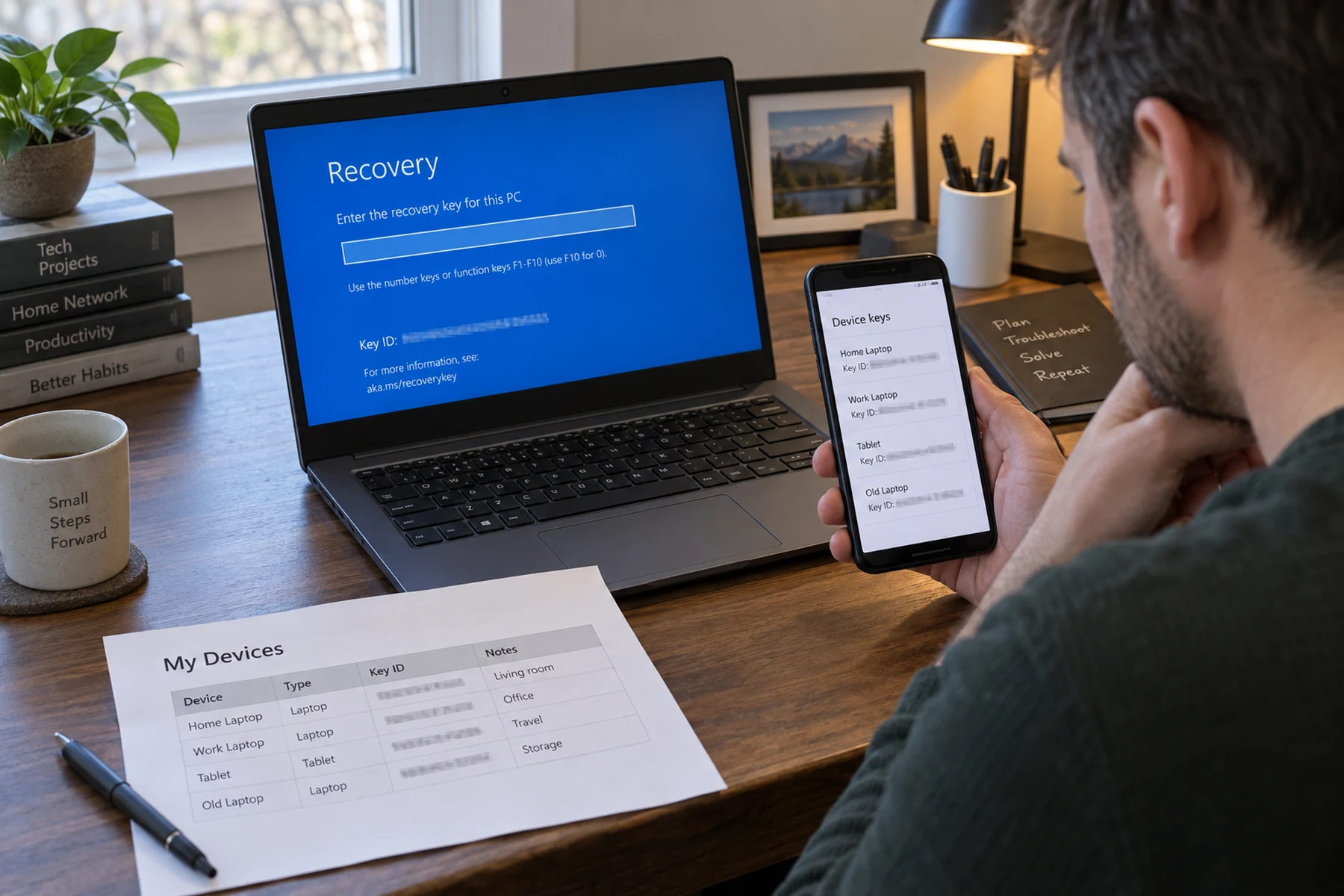
If an installer or video claims that a current PC must move immediately to 26H1, verify the claim on Microsoft’s update-history page. Never disable Secure Boot, antivirus, or update safeguards at the instruction of a download page. For an employer-managed PC, ask the administrator which feature-release ring applies. For a home device, keep a current backup and use only the update offered through Windows Update or Microsoft’s official installation guidance.
Separate feature updates from monthly security updates
Not being offered 26H1 does not mean the existing computer has stopped receiving security maintenance. Windows versions receive their own monthly security and quality updates while they remain in support. Check the installed version and its lifecycle rather than judging support from whether the number 26H1 appears in Settings. Microsoft maintains separate pages for version support and update history.
That distinction also helps explain why two new PCs can report different version labels even when they look similar in a store. Hardware platform, edition, servicing policy, and release eligibility can differ. Keep the model number, Windows edition, and build in the support note if you need help. A screenshot of a version label can be useful privately, but redact device and organization details before sharing it in a public discussion.
A quick reader decision
If you own a 24H2 or 25H2 PC, do not hunt for a 26H1 download. Check the version, confirm the edition is supported, and install the feature update Windows currently offers when you are ready. If you bought a device already running 26H1, keep installing its monthly updates and follow the device maker’s support instructions for its distinct release path.
The durable rule is simple: a release label is not a compatibility guarantee. Microsoft’s pages establish the current intended audience and upgrade boundary; they do not promise that an unofficial installation will be supported later. This explainer was updated on October 20, 2026, against the official 26H1 overview and update history. Revisit those pages if Microsoft revises the supported hardware or upgrade path.