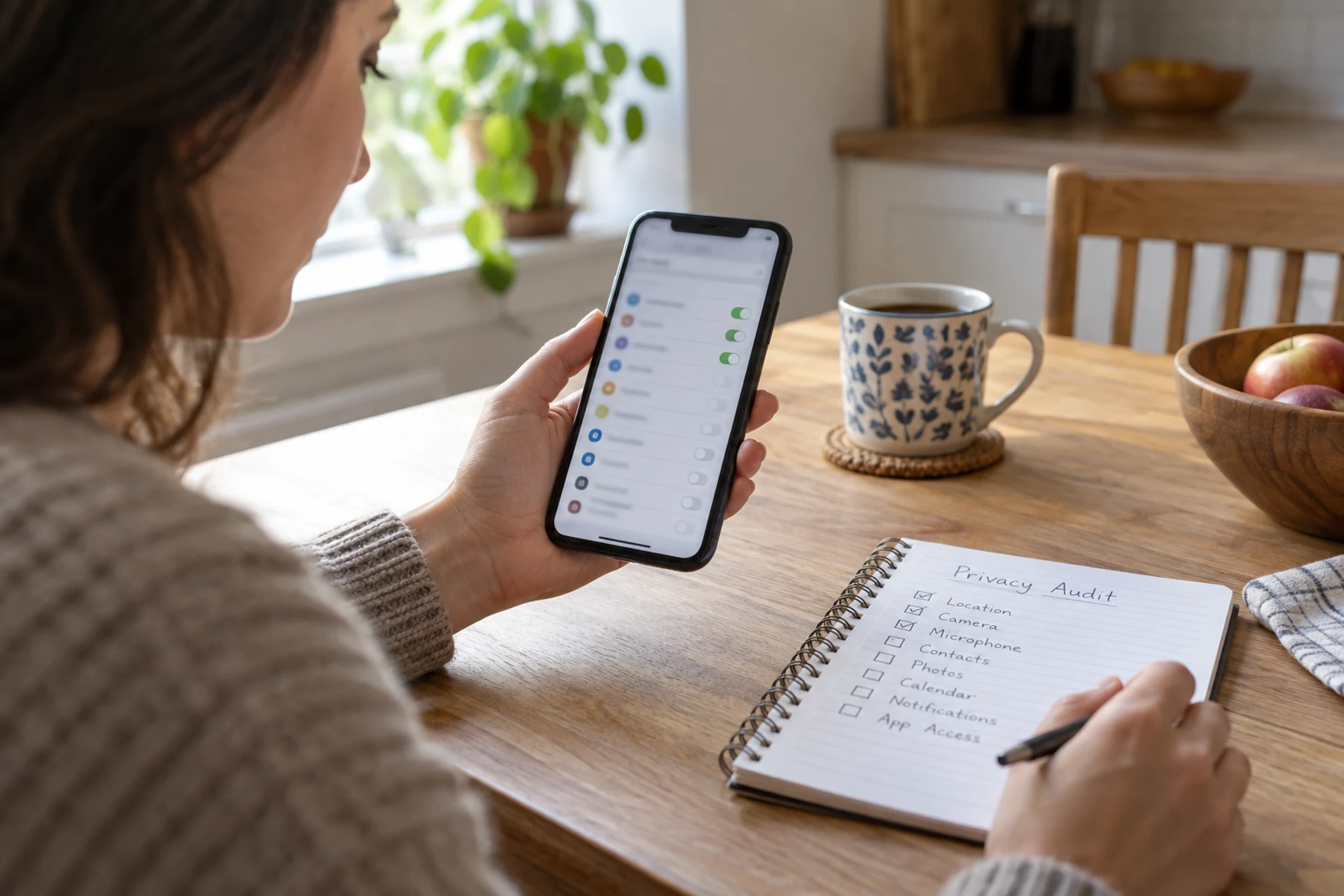
Permissions accumulate. A weather app may keep precise location after you stop using its local alerts; a social app may retain microphone access granted for one recording. A short audit reduces that background access without requiring you to delete every useful app.
Quick scan
In brief
Review permissions by sensitive capability so unexpected access is easier to spot.
Prefer while-in-use, approximate or selected-photo access when the feature does not need a broader grant.
Remove access first and test the app; permissions can usually be restored if a legitimate feature stops working.
Start with the most sensitive capabilities
Open the privacy or permission manager in the phone’s settings. Names vary by operating-system version, but both major mobile platforms group access to location, camera, microphone, contacts, photos and other data. Begin with location, microphone and accessibility because they can reveal behavior or enable broad control.
Look for surprises, not a perfect zero. A navigation app needs location while guiding you. A calculator does not. A camera app needs the camera; it may not need contacts. The question is whether the permission is necessary for a feature you actually use.
Reduce scope before denying everything
Modern phones often provide intermediate choices: approximate instead of precise location, access only while using the app, a one-time grant, or selected photos rather than the whole library. Choose the narrowest setting that supports the task.
Background location deserves special attention because it can continue when the app is not visible. Keep it only for a feature that genuinely depends on continuous tracking and that you value enough to accept the battery and privacy cost.
Action map
What to do next
| Layer | Focus | Working instruction |
|---|---|---|
| Check | Start with the most sensitive capabilities | Open the privacy or permission manager in the phone’s settings. |
| Action | Reduce scope before denying everything | Modern phones often provide intermediate choices: approximate instead of precise location, access only while using the app, a one-time grant, or selected photos rather than the whole library. |
| Verify | Use recent-access history | Android’s privacy dashboard and iOS privacy indicators can show when sensitive sensors were used. |
Use recent-access history
Android’s privacy dashboard and iOS privacy indicators can show when sensitive sensors were used. Check whether the timing makes sense. A microphone event during a recorded message is expected; access overnight from an app you did not open is worth investigating.
History is more informative than a static list because it reveals behavior. If an app’s access feels unexplained, remove the permission, update the app and review the developer’s documentation before granting it again.
Inspect special access
Some capabilities sit outside the ordinary permission list: installing unknown apps, drawing over other apps, notification access, device administration, accessibility control and unrestricted battery use. These grants can be legitimate, but they can also let an app observe or influence much more than a normal permission.
Google warns that harmful apps may pressure users to enable restricted settings. Do not follow instructions from an unexpected message or support caller. If an app cannot explain why it needs special access in plain language, leave the setting off.
Finish with deletion and a reminder
Remove apps you no longer use. Revoking permissions reduces access, but deleting an abandoned app also removes code that can age without your attention. Check subscriptions separately; uninstalling does not always cancel billing.
Set a calendar reminder every three months and repeat the same capability-first review. The goal is not a one-time purge. It is a small maintenance habit that keeps your phone aligned with how you use it now, rather than every choice you made during setup.