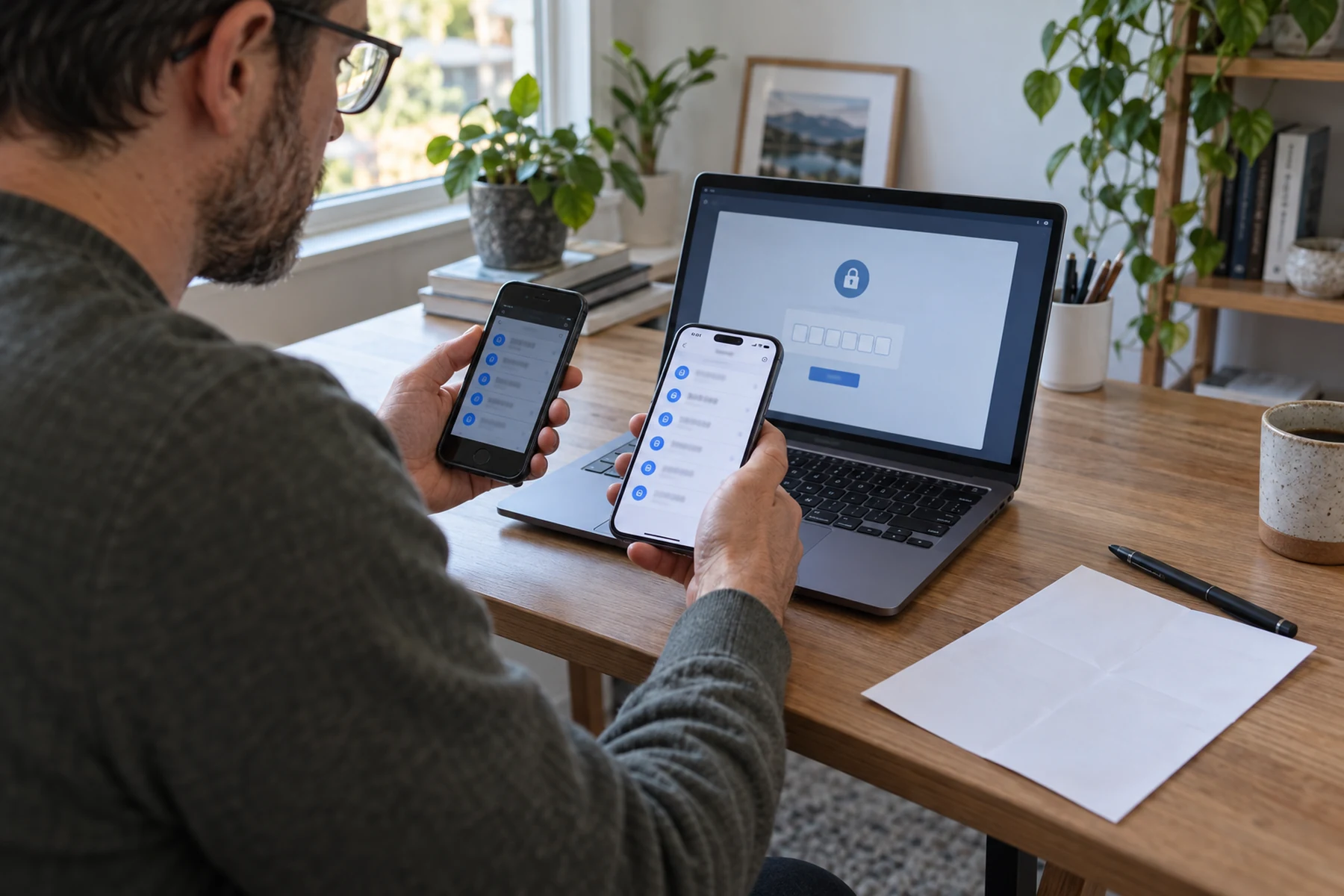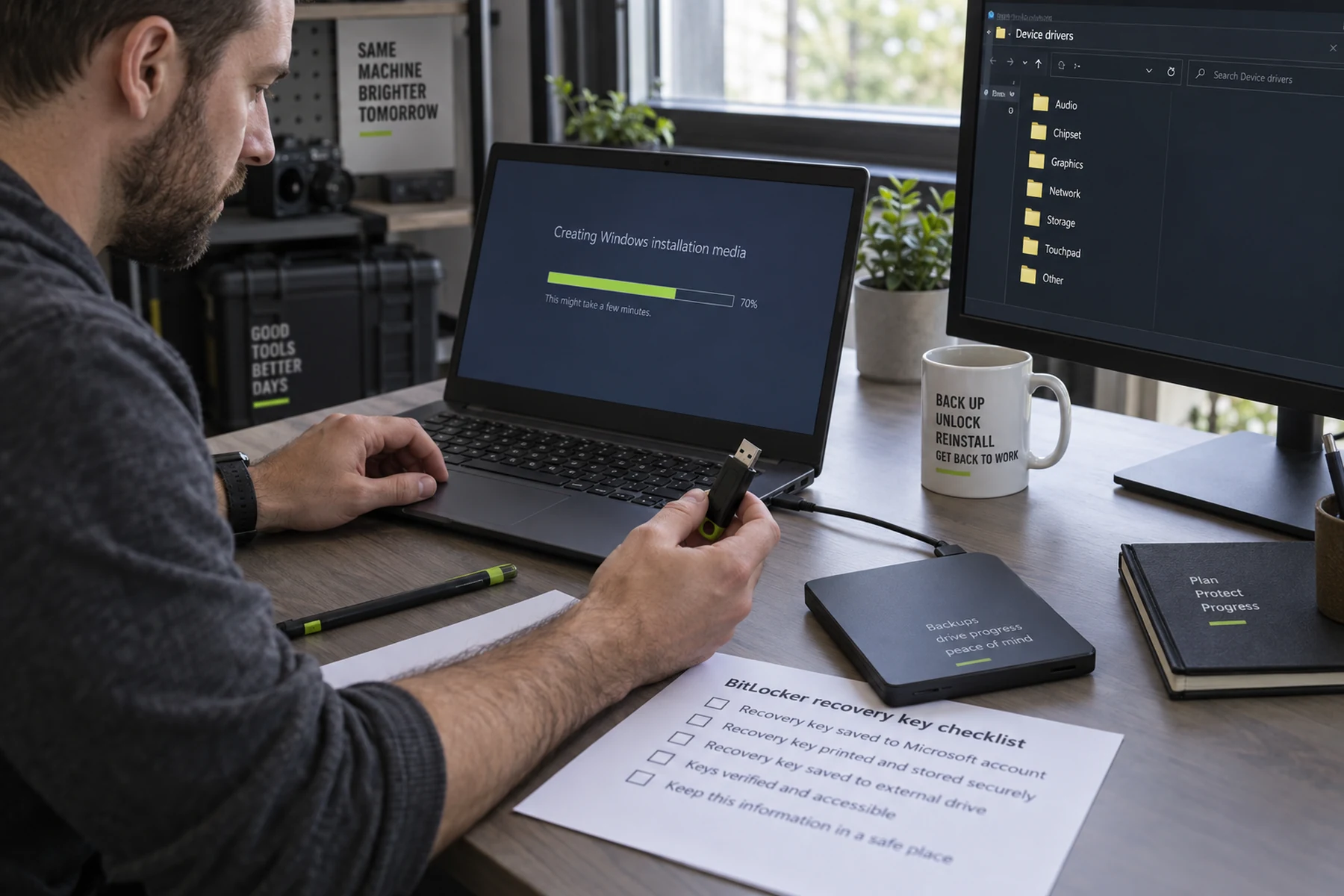
A clean Windows install can remove years of accumulated software problems, but it also removes the safety net people assume will be there. BitLocker may ask for a recovery key after firmware changes. Wi-Fi may not work until a driver is installed. A cloud folder may not contain files that never finished syncing. The correct sequence is evidence first: prove the backup, collect keys and drivers, identify the Windows edition, then create trusted installation media.
Quick scan
In brief
Confirm the BitLocker recovery key before changing partitions, firmware settings or the operating system.
Back up data and test opening representative files from the backup, including app-specific exports.
Create official installation media and save storage, chipset and network drivers for the exact device model.
Define the finish line before touching settings
The outcome is a clean, activated Windows installation with recoverable data and working hardware. Write that sentence at the top of the checklist. It prevents a common mistake: optimizing an intermediate signal while the actual recovery path remains untested.
Success must be observable by another person. “It should be backed up” or “the account looks secure” is not enough. Name the file that opens, the account that signs in, the device that works and the evidence you will keep.
Map the failure, not just the feature
The main harm is irreversible deletion, BitLocker lockout, wrong-edition activation trouble or a computer that cannot get online for drivers. That chain often crosses services, people and devices, so a single setting cannot control it. Draw the dependencies and mark anything that relies on the component you are changing.
Forum stories are useful here because they reveal sequencing errors: wiping too early, trusting an incomplete sync, changing every variable at once or discovering that a recovery code lived only on the failed device. Convert each story into a testable checkpoint.
Action map
What to do next
| Layer | Focus | Working instruction |
|---|---|---|
| Check | Define the finish line before touching settings | The outcome is a clean, activated Windows installation with recoverable data and working hardware. |
| Action | Map the failure, not just the feature | The main harm is irreversible deletion, BitLocker lockout, wrong-edition activation trouble or a computer that cannot get online for drivers. |
| Verify | Take inventory before the first change | Start with this inventory: check encryption state, recovery-key location, Windows edition, device model, app licenses and the last successful backup. |
Take inventory before the first change
Start with this inventory: check encryption state, recovery-key location, Windows edition, device model, app licenses and the last successful backup. Put unknowns in their own column. Unknown is a finding, not permission to assume the safest answer.
Capture current versions, account names and device identifiers without placing secrets in the same unencrypted note. Screenshots can help with ordinary settings, but recovery keys and exports need protected storage appropriate to their sensitivity.
Use the smallest reliable toolset
Prepare Microsoft installation media, an empty USB drive, offline network and storage drivers, power and a second internet-capable device. Download software only from the vendor or operating-system source, and read the current official instructions before a destructive step. Microsoft’s installation screens and recovery options can change, so use the current support steps for the installed edition.
Avoid adding cleanup utilities, transfer tools or “optimizers” merely because a search result ranks well. Every extra program adds permissions and another failure mode. Prefer built-in functions and a plain written sequence you can stop and audit.
Run a reversible first pass
Change one layer and preserve the old working state. A reversible pass produces evidence without closing the escape route. Label temporary files and devices, note the time and do not rely on memory when several accounts or cables look similar.
If the task involves copying or importing, begin with a small representative sample: one record with custom fields, one large file, one shared item or one device under realistic load. A fast sample exposes format and permission problems before the full operation multiplies them.
Verify the result from the user side
Verification means: open restored files, install updates, review Device Manager, confirm activation and test sleep, audio, camera and networking. Do this from the device, account or network state that will be used after the change, not only from the administrator screen that reports success.
Look for silent degradation. A task may “work” while losing metadata, reducing speed, falling back to SMS, syncing to the wrong account or depending on a session that will soon expire. Record the expected state and compare it with what a normal user actually sees.
Test one realistic failure
Disconnect the convenient path. Turn off the old device, sign out of a spare session, unplug the network where safe or attempt a restore into a new folder. The exact test depends on the topic, but the principle is constant: prove the plan when its easiest dependency is absent.
Stop if the test could destroy the only copy or lock the only administrator out. Failure testing should be staged and bounded. The purpose is to discover missing permissions and undocumented dependencies while the old working system is still available.
Know the stop signs
Stop when identity, encryption, power, battery safety or data ownership becomes uncertain. Repeatedly retrying a destructive operation can make recovery harder. Error text, timestamps and photos of physical condition are more useful than a sequence of improvised fixes.
Escalate through the official support or security route when the task crosses warranty seals, employer management, financial fraud, a swollen battery, evidence preservation or credentials you cannot lawfully access. A good guide defines its limit as clearly as its steps.
Keep a rollback path until the quiet period ends
retain the previous backup and do not erase the only recovery media until the rebuilt machine has passed a full working week. The quiet period should include ordinary work, a restart, an update and at least one recovery check. Problems that do not appear in a five-minute test often emerge when tokens expire, devices sleep or a scheduled job finally runs.
Do not confuse cleanup with urgency. Securely removing exports, old sessions or redundant data matters, but cleanup belongs after verification. Document what was removed, where the surviving copy lives and who can recover it.
A compact checklist to keep
Before: define the outcome, inventory dependencies, prove the backup and collect official documentation. During: change one variable, label temporary artifacts and record errors. After: verify from the user side, test one failure and watch through the quiet period.
Revisit the checklist when an account, device, phone number, employee or subscription changes. The most resilient setup is not the most complicated one. It is the one a tired person can understand, verify and recover without searching for instructions during the incident.
Decision note 2
Return to the central outcome before adding another setting, accessory or service. For “Reinstall Windows without being surprised by BitLocker, drivers or a missing activation,” the useful evidence is the part that changes a real decision: cost, reliability, privacy, safety, repair or recovery. Record the baseline, the change and the observed result so a later update can be compared rather than remembered.
Treat missing documentation as a product characteristic. Ask who owns the failure, how data can be exported, what happens offline, which promises are contractual and which are marketing. A simple decision log prevents the same uncertainty from being rediscovered after staff, devices or software versions change.
Decision note 3
Return to the central outcome before adding another setting, accessory or service. For “Reinstall Windows without being surprised by BitLocker, drivers or a missing activation,” the useful evidence is the part that changes a real decision: cost, reliability, privacy, safety, repair or recovery. Record the baseline, the change and the observed result so a later update can be compared rather than remembered.
Treat missing documentation as a product characteristic. Ask who owns the failure, how data can be exported, what happens offline, which promises are contractual and which are marketing. A simple decision log prevents the same uncertainty from being rediscovered after staff, devices or software versions change.
Decision note 4
Return to the central outcome before adding another setting, accessory or service. For “Reinstall Windows without being surprised by BitLocker, drivers or a missing activation,” the useful evidence is the part that changes a real decision: cost, reliability, privacy, safety, repair or recovery. Record the baseline, the change and the observed result so a later update can be compared rather than remembered.
Treat missing documentation as a product characteristic. Ask who owns the failure, how data can be exported, what happens offline, which promises are contractual and which are marketing. A simple decision log prevents the same uncertainty from being rediscovered after staff, devices or software versions change.
Decision note 5
Return to the central outcome before adding another setting, accessory or service. For “Reinstall Windows without being surprised by BitLocker, drivers or a missing activation,” the useful evidence is the part that changes a real decision: cost, reliability, privacy, safety, repair or recovery. Record the baseline, the change and the observed result so a later update can be compared rather than remembered.
Treat missing documentation as a product characteristic. Ask who owns the failure, how data can be exported, what happens offline, which promises are contractual and which are marketing. A simple decision log prevents the same uncertainty from being rediscovered after staff, devices or software versions change.