A folder synchronized to the cloud is convenient, but synchronization and backup solve different problems. If deletion, corruption or ransomware is copied immediately, the synchronized copy may change too. A resilient setup keeps multiple recoverable versions and at least one copy that a damaged computer cannot silently rewrite.
Quick scan
In brief
Keep three copies of important data, on two kinds of storage, with one copy offsite.
Use version history and an offline or otherwise isolated copy to reduce the risk of synchronized damage.
Test recovery on a schedule; an untested backup is only an assumption.
Decide what would hurt to lose
Start with data, not hardware. A laptop can be replaced; family photos, tax records, unfinished work and authentication recovery codes may not be. Make a short inventory and note where each item currently lives. Include files inside apps and online services, not just the Documents folder.
Give the inventory an order. Critical means you would need it within a day; important can wait a week; replaceable can be downloaded or recreated. This prevents a backup job from spending most of its time copying caches and media that do not matter while missing a small folder that does.
Turn 3-2-1 into a household setup
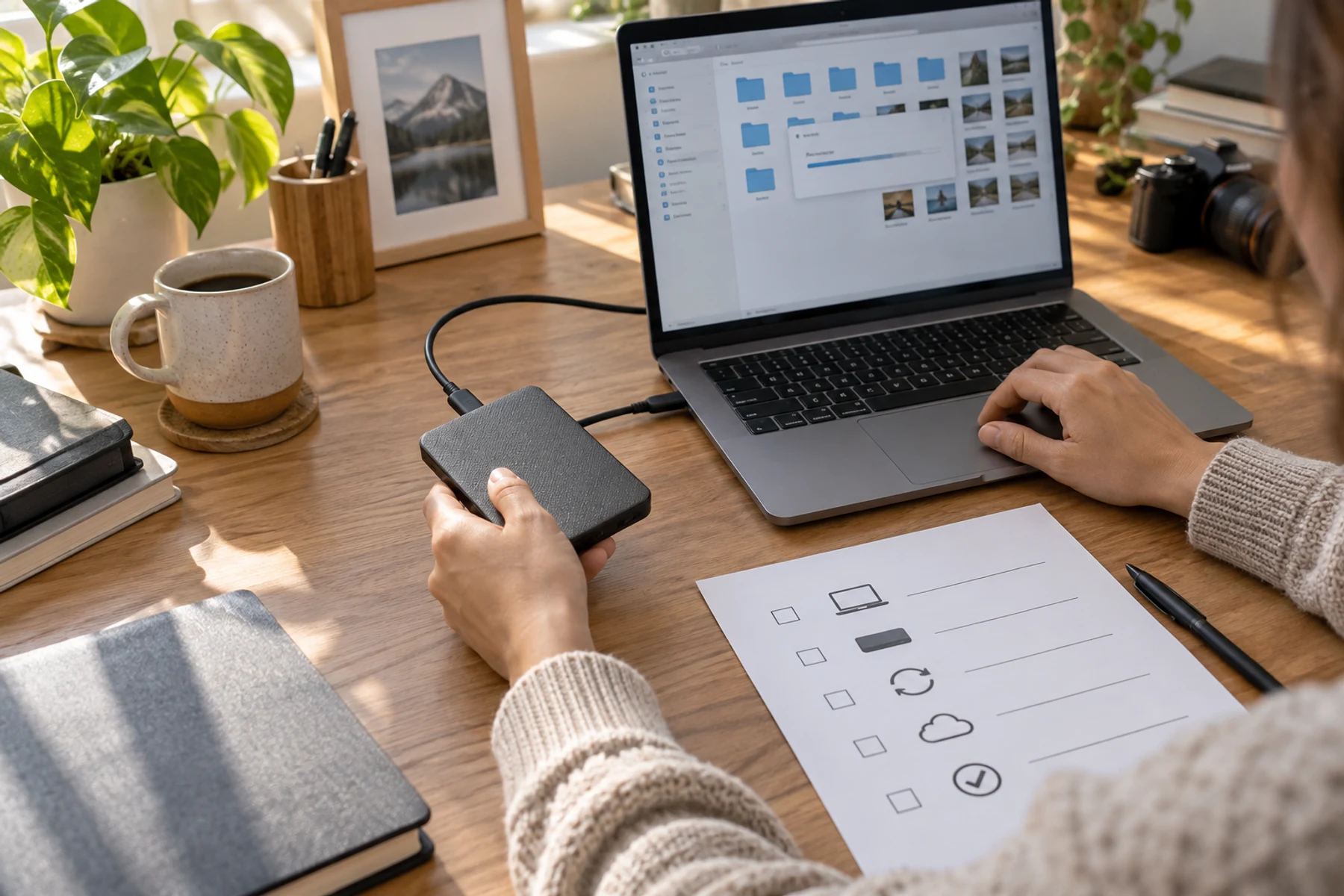
The familiar rule means three copies, two media types and one offsite. A practical version might be the working copy on a laptop, an automatic versioned backup to a local external drive and an encrypted cloud backup. Another could use a desktop, a periodically connected drive and a drive stored with a trusted relative.
The local copy makes large restores fast. The offsite copy protects against theft, fire or a power event that damages equipment in one location. The isolated copy matters because malware and accidental deletion often affect every storage location the computer can currently reach.
Action map
What to do next
| Layer | Focus | Working instruction |
|---|---|---|
| Check | Decide what would hurt to lose | Start with data, not hardware. |
| Action | Turn 3-2-1 into a household setup | The familiar rule means three copies, two media types and one offsite. |
| Verify | Automate, then create distance | Use the operating system’s scheduled backup feature or a reputable backup application so protection does not depend on memory. |
Automate, then create distance
Use the operating system’s scheduled backup feature or a reputable backup application so protection does not depend on memory. Keep enough history to recover from a problem discovered days later. A single mirror of the latest state can faithfully preserve the latest mistake.
For an offline drive, connect it on a routine, allow the backup to complete, eject it properly and store it away from the computer. If you use a cloud service, enable multifactor authentication and save recovery information somewhere separate from the device it protects.
Run a small restore drill
Once a month, choose a file you know existed earlier, restore it to a temporary folder and open it. Once or twice a year, test a larger recovery: a photo directory, a project or the steps needed to rebuild a new computer. Record how long it takes and where credentials are stored.
Do not overwrite the current file during a test. Restore to a separate location, compare the result and delete the test copy when finished. The goal is to validate the path without creating a new loss.
A simple maintenance rhythm
Weekly: confirm the automatic job completed. Monthly: restore one file. Quarterly: review the important-data inventory and check available space. Yearly: replace failing media, update written recovery steps and make sure another trusted person can follow them if necessary.
The best backup plan is deliberately boring. It runs without attention, reports failures clearly and has already proved that it can return data. Buying another drive is easy; practicing recovery is what turns storage into resilience.