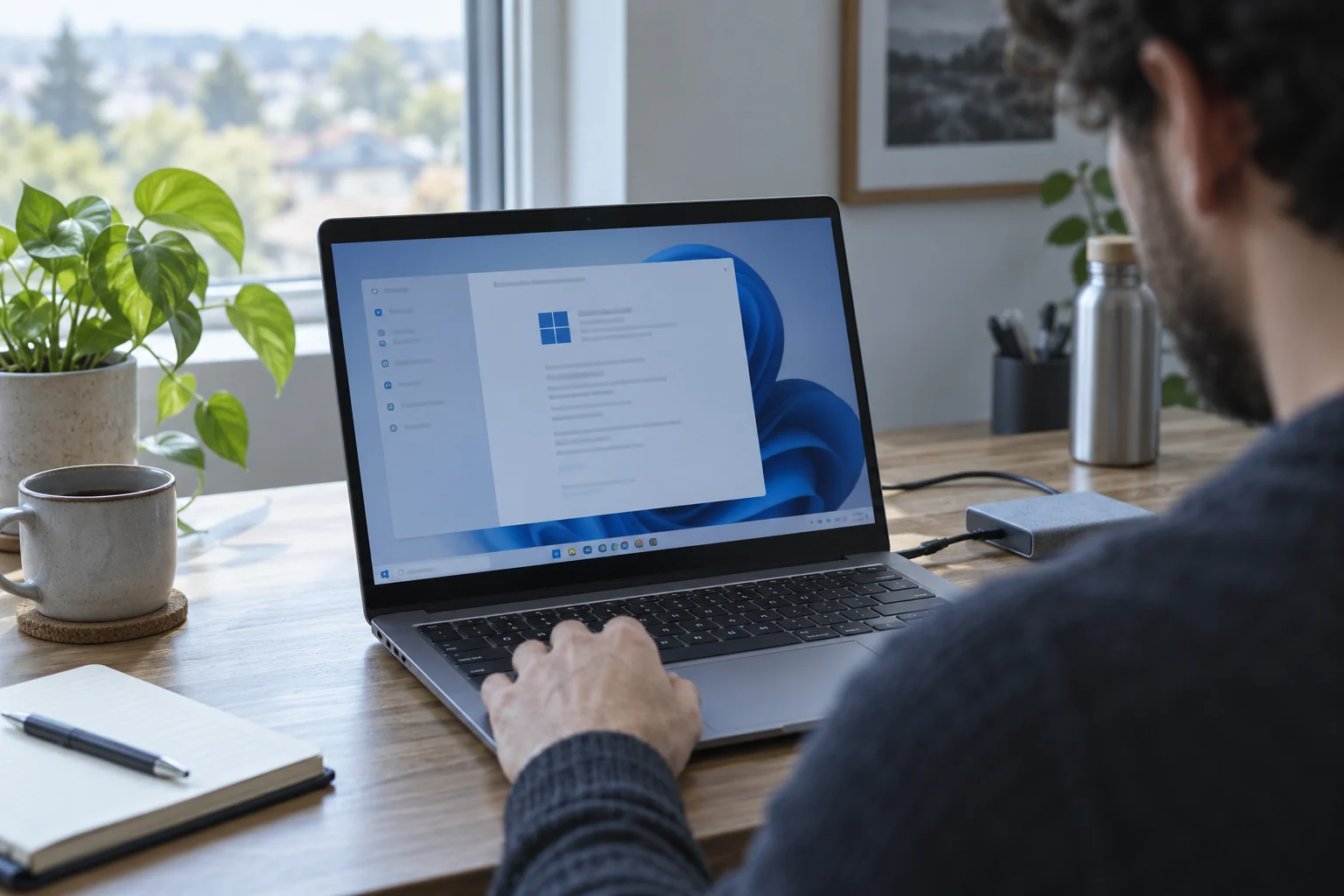
A Windows Update page that keeps saying “Pending restart” can tempt you to delete update files, stop services, or paste a repair script from a forum. Start by confirming the exact update and whether Windows has had one clean restart. Microsoft’s troubleshooting guidance begins with backups, the built-in Get Help troubleshooter, and the specific error code. This sequence keeps the problem observable and avoids turning a slow update into a boot or recovery problem.
Quick scan
In brief
Save work and preserve important files before troubleshooting an update that repeatedly fails.
Record the KB number, exact status, error code, available storage, and when the restart loop began.
Use Microsoft’s built-in troubleshooter first; deeper cache or service changes should follow current official instructions.
Decide whether the restart is still in progress
First, distinguish a message that asks for a restart from a machine that is actively installing an update. If Windows is showing a percentage or a “do not turn off” screen, keep the computer connected to power and do not force it off merely because the display has paused for a short time. Large servicing operations can take longer than a normal reboot. If the machine is unresponsive for an unusually long period, especially after repeated failed boots, use the manufacturer’s support guidance rather than repeatedly cutting power.
If the desktop has returned and Settings still says “Pending restart,” save your open work, close applications, and perform one normal restart. Then give Windows time to complete startup before checking the update page again. A single controlled restart is different from cycling the power. If the same pending state remains, capture the update name and current time; that creates a baseline for later checks.
Write down the evidence before trying a repair
Open Settings → Windows Update → Update history and note the KB number, installation result, and date. If there is an error code, copy it exactly. Also record the Windows version, free space on the system drive, whether the PC is on a metered or unreliable connection, and whether a restart already completed. These observations help distinguish a download that never finished from an install that failed during servicing or a required restart that did not register.
Back up files that would be difficult to replace before running troubleshooting steps. Microsoft explicitly recommends protecting personal files before trying its update repairs. For a managed computer, ask IT before changing update services or deleting cache folders; device-management software may own that state. Do not send a recovery key, password, or company device name with the error report.
Action map
What to do next
| Layer | Focus | Working instruction |
|---|---|---|
| Check | Decide whether the restart is still in progress | First, distinguish a message that asks for a restart from a machine that is actively installing an update. |
| Action | Write down the evidence before trying a repair | Open Settings → Windows Update → Update history and note the KB number, installation result, and date. |
| Verify | Run the built-in troubleshooter first | On a current Windows 11 device, Microsoft points users to the Windows Update troubleshooter in the Get Help app. |
Run the built-in troubleshooter first
On a current Windows 11 device, Microsoft points users to the Windows Update troubleshooter in the Get Help app. You can also open Settings → System → Troubleshoot → Other troubleshooters and run Windows Update, depending on the version. Follow the prompts and let the tool finish before starting a second repair. Restart when asked, then check for updates again and record whether the status or code changed.
A troubleshooter can identify a common service, cache, or configuration problem, but it cannot promise to fix every failure. If it reports a specific result, preserve that text. Microsoft’s support article groups common codes with different likely causes, such as a connection problem, insufficient space, or corrupted update files. Treat the code as a branching clue, not a reason to apply every repair listed online.
Rule out simple blockers without disabling protection
Check that the system drive has enough free space for the update and that the network is stable. If you use a metered connection or a corporate proxy, note that fact before changing it. Do not turn off antivirus or firewall protection because a random forum reply suggests it; first verify the exact Microsoft troubleshooting page for your code and follow only a current, scoped instruction. On a work device, the administrator may require a specific network or update schedule.
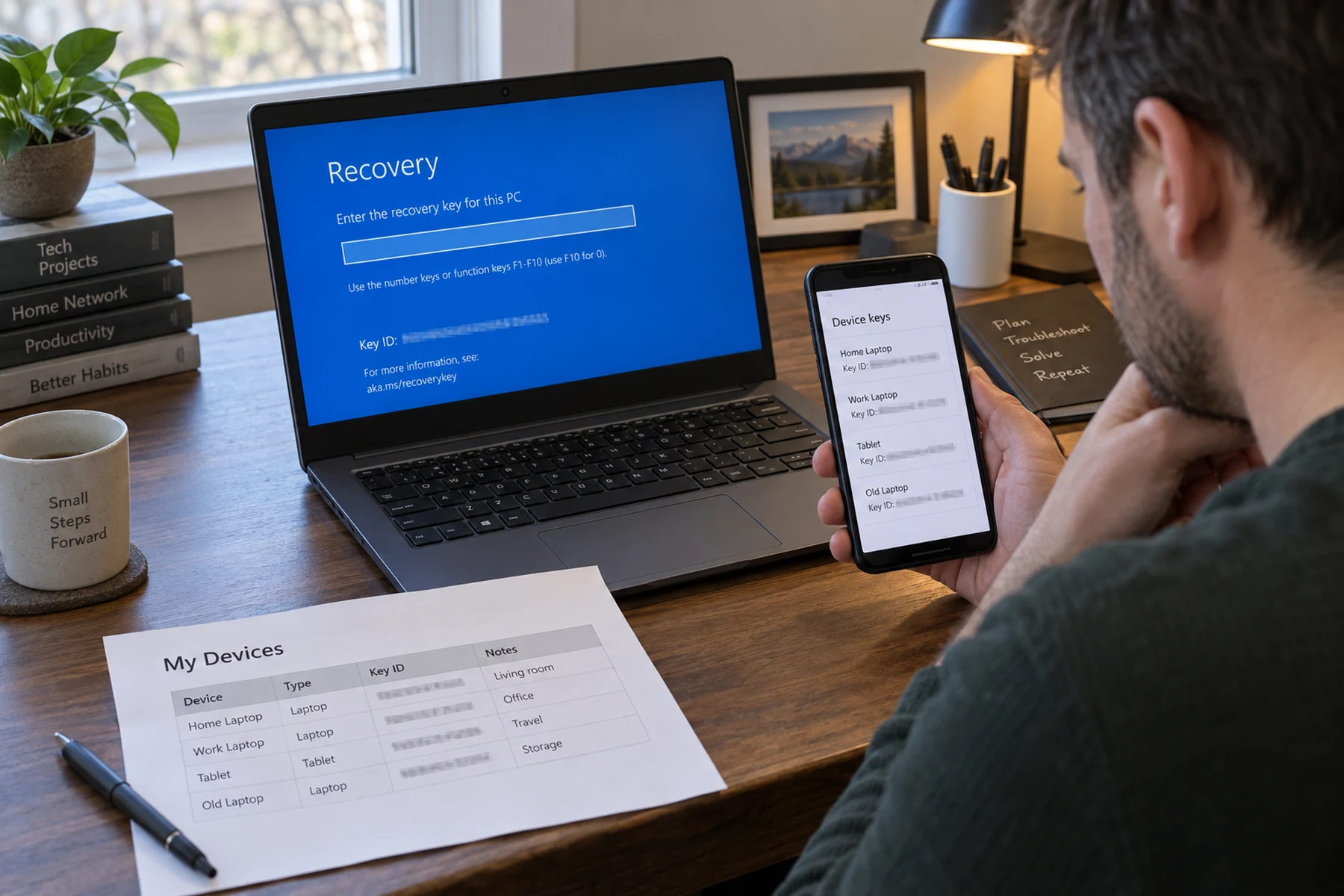
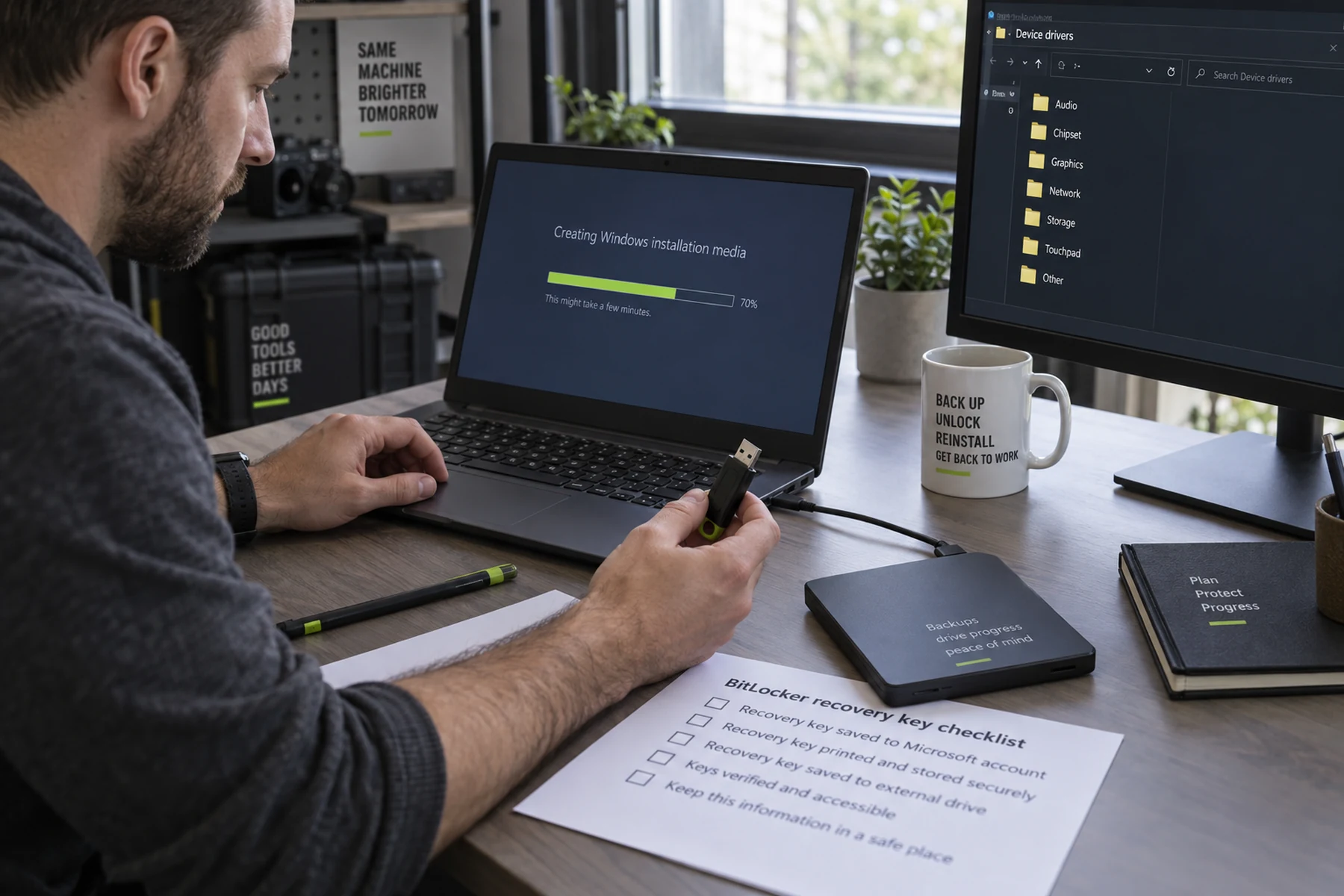
If the update has downloaded but installation fails, compare the error with Microsoft’s current article rather than repeatedly pressing “Retry.” One attempt after a normal restart and a successful troubleshooter is a useful test. Five retries with the same error usually add no information. Stop if the machine begins asking for a BitLocker recovery key, enters a boot loop, or reports disk errors; preserve the recovery key using your legitimate account or administrator before proceeding.
When advanced cache cleanup is justified
Microsoft’s detailed help pages include advanced steps for certain codes, such as stopping a service and clearing its update download cache. Those steps are not interchangeable with a universal “reset Windows Update” script. Use them only when the official instructions match your code and Windows version, and after backing up important files. Read the full procedure first so you know how to restart the service and what result to expect.
Avoid deleting system folders by hand, renaming several services, or running a large PowerShell script that bundles unrelated changes. If you do not understand a command or cannot restore the prior state, ask a knowledgeable administrator. A managed PC can have update policies that immediately recreate files or block the service restart. In that case, an attempted local fix can leave a confusing state without solving the underlying policy issue.
Use a stop point instead of piling on fixes
Escalate when the same error survives the built-in troubleshooter, when Windows cannot boot normally, when updates repeatedly roll back, or when disk-health warnings appear. Send support the KB, error code, Windows build, free space, restart history, troubleshooter result, and whether the device is managed. Tell them exactly what you already changed. This is more valuable than a list saying “I tried everything,” because it makes the next action testable.
After the update completes, check Update history and confirm the expected KB is installed. Open the applications and settings you rely on, and verify that any BitLocker recovery information remains available. Keep the short incident note for the next failed update. This method is deliberately less dramatic than a full system reset: most pending-restart loops should be diagnosed before a reinstall is considered.