Google’s current Pixel support page describes call and mobile-data diagnostics that can run tests and provide a detailed report. The feature is not available to every Android owner: Google lists it for US subscribers using Pixel 11 phones. The support page also names data that may be sent if you share diagnostics, including account information, IMEI, model, session ID, test-call results, failure history, speed-test results, connection status and related settings. Review the report and decide whether to share it before submitting.
Quick scan
In brief
Google lists these call and mobile-data diagnostic tools for US subscribers on Pixel 11 phones.
A shared report may include account information, IMEI, model, test-call results and connectivity history.
Running a local test and sharing its report are separate decisions; inspect the prompt and report first.
Check whether the tool applies to your phone
Google’s support article says the call and mobile-data diagnostic feature is currently available only in the United States to subscribers using Pixel 11 phones. If your Pixel does not show the menu, that may be an eligibility limit rather than a damaged Settings app. Confirm your model and carrier, then use Google’s ordinary connectivity troubleshooting steps or contact the carrier if you are on a different device.
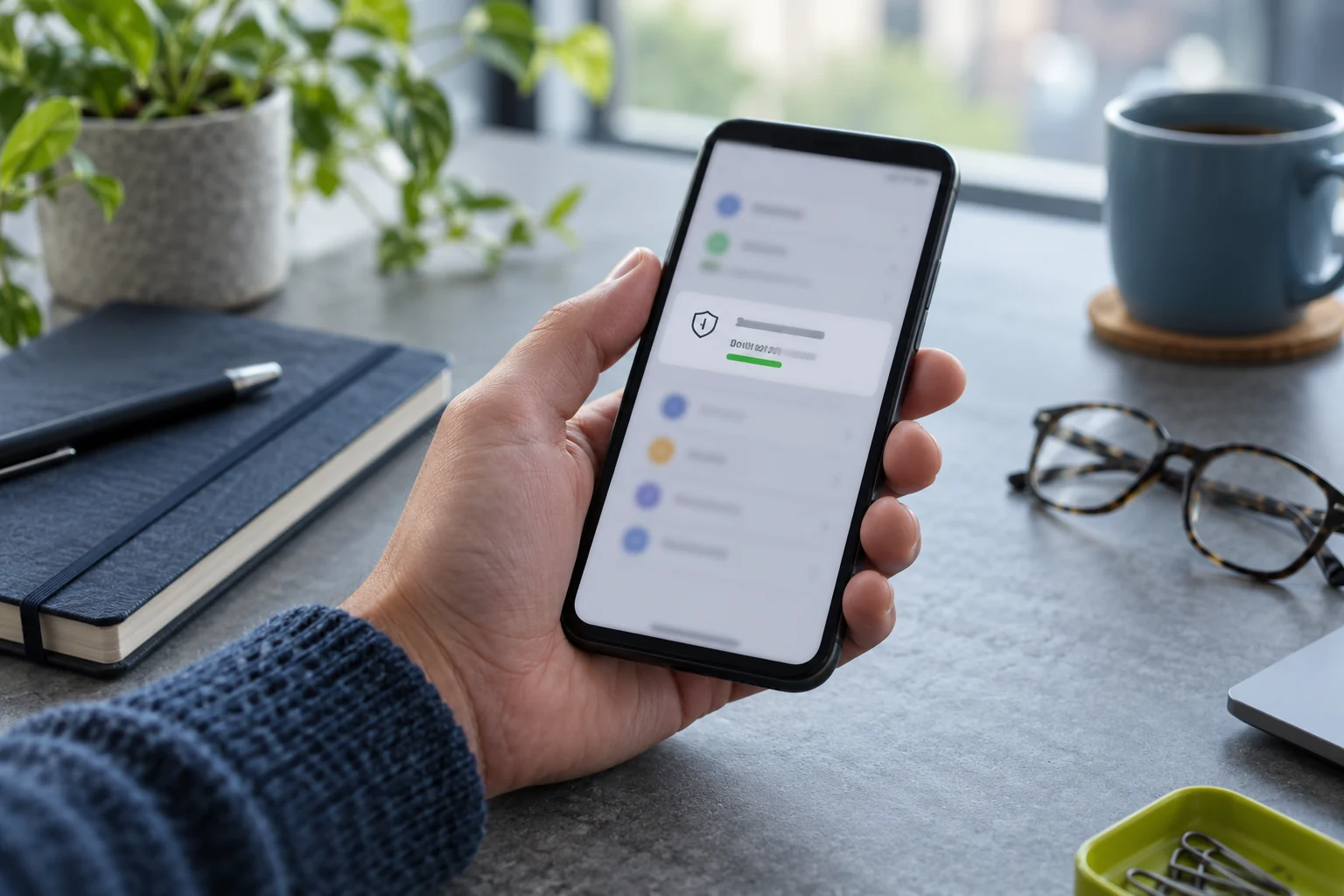
For eligible devices, Google lists the location as Settings → Device health & support, with separate entries for Call diagnostics and Mobile data diagnostics. The feature can auto-detect some problems, review settings, run a speed test, and generate a detailed report. The word diagnostic does not mean the test has already been sent to Google; read the confirmation screen carefully and distinguish local analysis from report sharing.
Understand the report fields before submitting
Google says a shared report can include your account information, the phone’s IMEI, model, a user-session ID, results of incoming and outgoing test calls, call failure history, speed-test results, data connection status and history, and connectivity-related setting states. An IMEI is a device identifier, not a password, but it is still sensitive information that should not be posted publicly or sent to an unverified person.
The list helps explain why a report may be more revealing than a simple “mobile data did not work” message. It can show which carrier path or device state the test exercised and can help support diagnose a failure. Before tapping Share, check whether the screen shows the data being sent, the recipient, and any retention or privacy notice. If those details are not clear, pause and consult Google’s official privacy information.
Action map
What to do next
| Layer | Focus | Working instruction |
|---|---|---|
| Check | Check whether the tool applies to your phone | Google’s support article says the call and mobile-data diagnostic feature is currently available only in the United States to subscribers using Pixel 11 phones. |
| Action | Understand the report fields before submitting | Google says a shared report can include your account information, the phone’s IMEI, model, a user-session ID, results of incoming and outgoing test calls, call failure history, speed-test results, data connection status and history, and connectivity-related setting states. |
| Verify | Run a basic local check first | Confirm that airplane mode is off, the intended SIM is enabled, and mobile data is on. |
Run a basic local check first
Confirm that airplane mode is off, the intended SIM is enabled, and mobile data is on. Test one call and one data-dependent task in a known coverage area. If the problem happens only at home, on Wi-Fi, or while roaming, write down the location category without sharing a precise address in a public ticket. Check whether the carrier reports an outage before changing APN or network settings.
Google’s guide suggests checking mobile settings and contacting the carrier to confirm service and plan status if the steps do not resolve the issue. A quick local test can show whether the problem is likely device-wide or limited to a particular network. Do not repeatedly run test calls to emergency numbers; use the feature exactly as documented and follow local emergency guidance if you need help.
Choose whether a report is worth sharing
A report is most useful when the problem is reproducible and the recipient is official support. If you cannot make or receive calls and the carrier needs technical evidence, the test results can save time. If the connection works normally and you are only curious about the tool, there may be little benefit in sending a report that includes identifiers and history. You can describe the symptom without sharing every diagnostic field.
Verify that you are in the real Google support flow before sharing. Do not send a screenshot of the report to a stranger in a forum, social-media direct message, or unsolicited support call. Google’s privacy documentation explains how it handles data across services, but the exact diagnostic screen is the right place to review the specific submission. If an employer manages the phone, follow its policy before sending diagnostic data to a consumer support channel.
Turn off broader usage diagnostics separately
Google documents a separate Usage & diagnostics setting for device performance and usage patterns. Its help page says this can include battery and thermal performance, sensors, component performance, software stability, app-use frequency, and network-connection quality or length. That is distinct from a one-time connectivity diagnostic report. Turning off broad usage diagnostics does not necessarily disable data collected by individual apps or required device services.
If you want to review that setting, Google documents it under Settings → Security & privacy → More security & privacy → Usage & diagnostics, though menu names can vary by version. Review the on-screen description and remember that a shared device’s other user profiles may affect preferences. Do not assume a single toggle controls all analytics, app data collection, carrier logs, and support submissions.
The one-time connectivity report is separate from the broader Usage & diagnostics option. Google documents that the latter can include performance and usage patterns such as battery, thermal behavior, app-use frequency, and connection quality. Turning off a broad setting does not necessarily erase past data, stop data collected by apps, or cancel a separate diagnostic report you choose to share. Treat each control and submission separately: review the scope, purpose, destination, and account that will receive it before deciding.
Keep a support note without exposing identifiers
For a useful report, write down the date, approximate time, model, Android version, patch level, carrier, whether Wi-Fi calling or roaming was involved, and what worked or failed. Keep the IMEI and full diagnostic report private. If an official support team asks for a report, confirm the request through the carrier or Google contact path you initiated yourself.
If the issue persists after the documented checks, contact the carrier to verify coverage, account provisioning, and service outages. For a device-specific problem, contact Google support. Avoid a factory reset until you have backed up the phone and ruled out carrier or account causes. This guide describes the tool and its documented information categories; Google may update eligibility and report behavior, so re-read the support page immediately before sharing.