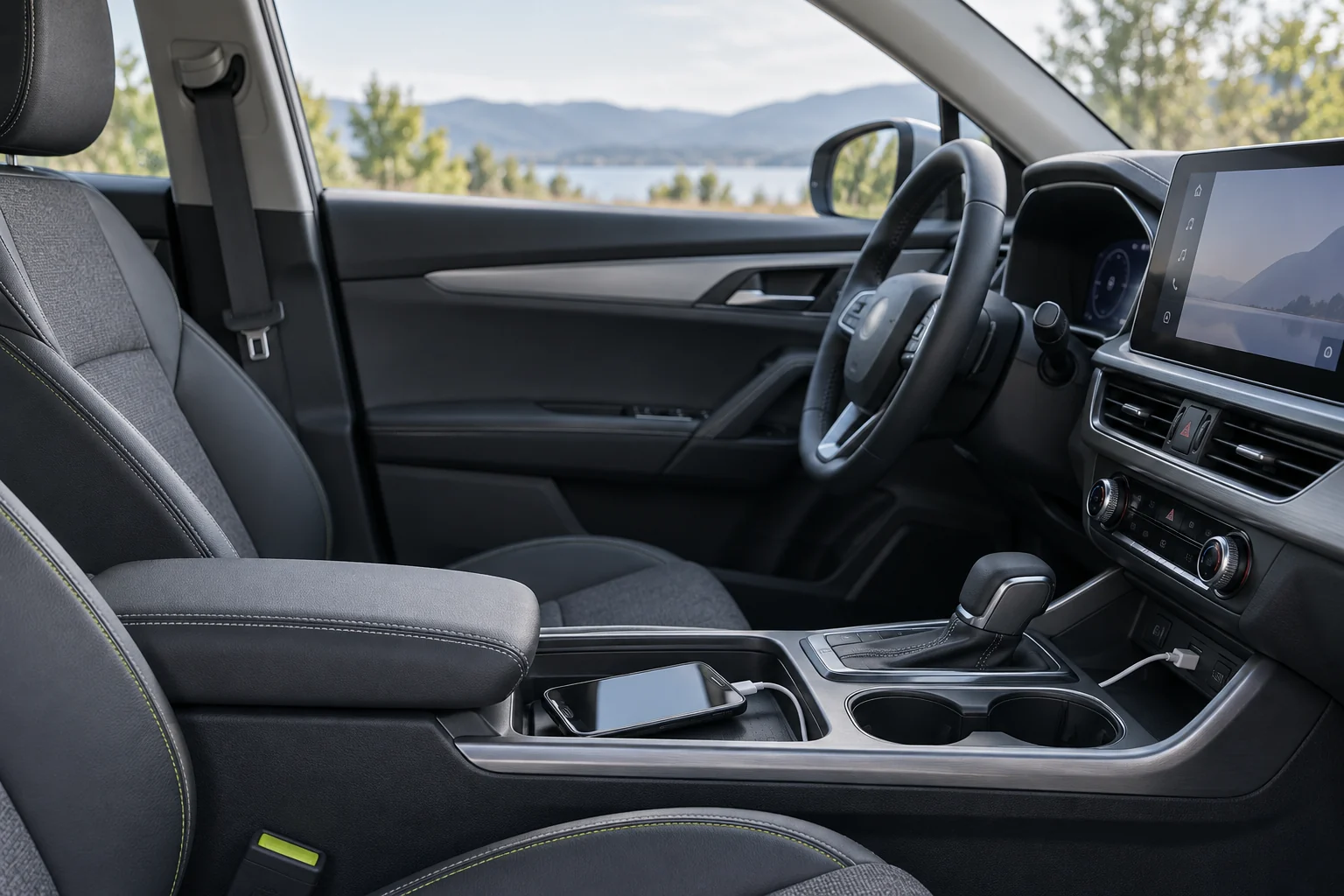
When Android Auto drops, the phone may still charge, the car may still see Bluetooth, and the USB cable may still look fine. Those signals do not prove that the data connection is stable. Google recommends checking compatibility and, for a wired connection that used to work, trying a high-quality cable under one meter without a hub or extension. Use this checklist while the car is parked. The aim is to identify which part of the path fails before clearing saved pairings or changing settings.
Quick scan
In brief
Android Auto is built into compatible phones; a separate Play Store download is not required for the car-display feature.
Google recommends a high-quality short cable for wired use and a compatible phone/car for wireless mode.
Run every connection test while parked, and never troubleshoot by handling a phone while driving.
Start with compatibility and a safe setting
Park the vehicle, put it in Park, and turn on the infotainment system before starting setup. Google’s requirements distinguish wired and wireless use. Wired Android Auto needs a compatible phone, car or aftermarket receiver, and a data-capable cable. Wireless use additionally depends on a compatible phone, active data plan, 5 GHz Wi-Fi support, and a compatible car or stereo. A USB port in a vehicle does not automatically mean the car supports Android Auto.
Check the exact car model or receiver with its manufacturer, not only the connector shape. If Android Auto never worked in this vehicle, confirm compatibility before changing phone settings. If it used to work and stopped, compare the setup with Google’s help page and note whether the failure began after a cable, phone, car firmware, or Android update change.
If you use a cable, test the data path
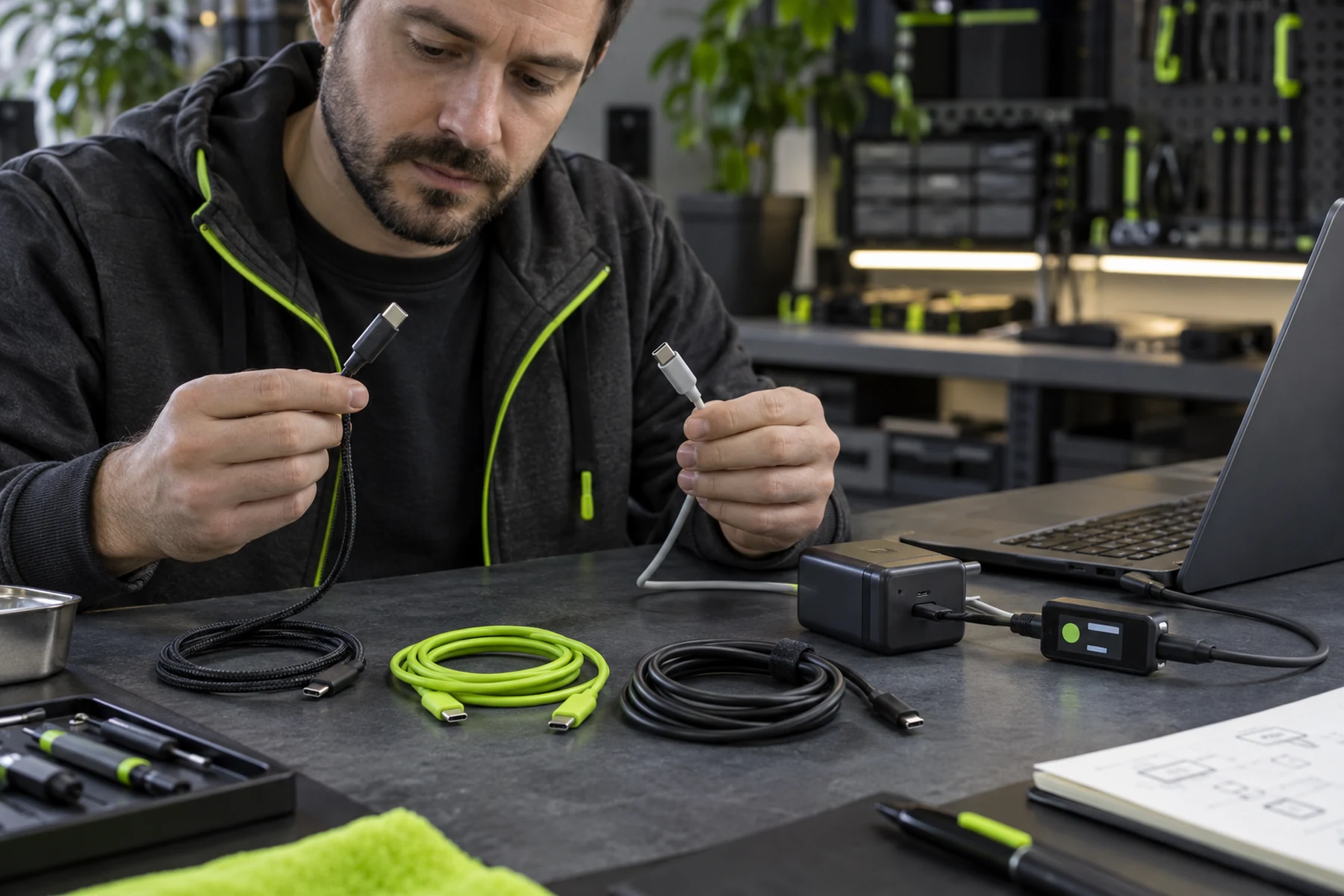
Use a known-good cable that supports data, preferably the cable supplied with the phone or a certified alternative. Google recommends a cable under one meter and advises against hubs or extensions. Try a different compatible USB port if the vehicle has more than one. Watch whether the phone charges, whether a USB prompt appears, and whether Android Auto launches. Charging alone does not confirm that the data wires or connector are working.
Inspect the phone and car ports for lint or visible damage, but do not insert a metal tool or liquid cleaner. If the cable has been bent, stretched, or used in a hot car for years, replace it with a reputable cable before buying a new head unit. Change only one item at a time: cable, port, phone, then vehicle settings. This lets you identify whether the failure follows a specific component.
A short test log can show whether the disconnect follows the cable, the vehicle, or the phone. For each parked test, record wired or wireless mode, cable and port used, phone model and software version, receiver model, and whether the phone charged, projected, or dropped after a delay. Repeat the same route of steps with one change. Do not collect information while the vehicle is moving. When the symptom consistently follows one cable or receiver, you have a more useful repair request than a general claim that Android Auto is unreliable.
Action map
What to do next
| Layer | Focus | Working instruction |
|---|---|---|
| Check | Start with compatibility and a safe setting | Park the vehicle, put it in Park, and turn on the infotainment system before starting setup. |
| Action | If you use a cable, test the data path | Use a known-good cable that supports data, preferably the cable supplied with the phone or a certified alternative. |
| Verify | If you use wireless Android Auto, isolate pairing | Wireless setup depends on an initial Bluetooth pairing and uses Wi-Fi for the projection link. |
If you use wireless Android Auto, isolate pairing
Wireless setup depends on an initial Bluetooth pairing and uses Wi-Fi for the projection link. Keep Bluetooth, Wi-Fi, and Location Services enabled during the official setup flow. Confirm that the phone and vehicle are both compatible with wireless Android Auto. If Bluetooth calls work but projection does not, that is evidence that basic pairing succeeded; it does not prove the separate wireless data path is healthy.
Test with the phone in a normal location in the cabin and remove other paired phones temporarily only if the car owner’s manual explains how. Some head units reconnect to a different saved device first. Do not erase every Bluetooth pairing on the phone until you have recorded the car’s current profile and can restore it. A second compatible phone can help distinguish a vehicle issue from a single-device issue, but use only a device whose owner approves the test.
Restart in a controlled order
With the vehicle parked, restart the phone and the infotainment system using the manufacturer’s normal method. A system restart is lower risk than deleting all Android Auto data or resetting the phone’s network settings. After reboot, connect once and follow the prompts. Record whether the car asks for a permission, remains at a connecting screen, or drops after a specific interval.
If the vehicle has an aftermarket receiver, check the manufacturer’s support page for a compatible firmware update. Do not install an image from a video description or a forum mirror. A car update may affect radio, camera, or safety functions beyond Android Auto, so follow the official model-specific instructions. If a business or rental vehicle is involved, ask its owner before making changes.
Forget a car only after preserving the baseline
If the phone connects to one car but not another, Google documents forgetting previously connected cars as a troubleshooting step. Before doing that, note which phone, vehicle, and connection mode were saved. Then remove the single problematic pairing, reboot if needed, and set up the car again while parked. Avoid resetting Bluetooth and Wi-Fi settings across the whole phone; that also removes saved networks and unrelated pairings.
A pairing reset can erase helpful evidence and may require you to reconfigure other devices. Do not repeat it in a loop. If the problem returns with the same car after a clean setup, share the exact model year, receiver firmware, Android version, connection type, cable model, and behavior with the vehicle maker or Google support. Redact your phone number, home address, and saved device names from public screenshots.
Know when the problem is not Android Auto
If calls also fail, mobile data drops, or the phone cannot see any Bluetooth device, the issue may be broader than the car projection feature. Test mobile connectivity outside the vehicle and check whether another phone works with the car. If only a specific app’s audio is missing, inspect the car’s media source and app permissions without changing the entire network stack.
Do not handle the phone while driving to reproduce a disconnect. Stop safely first, then capture the time and conditions. If the display itself reboots or the vehicle shows a warning, contact the vehicle manufacturer. A stable route is more important than a successful test: use a dashboard mount and the vehicle’s controls, follow local laws, and postpone configuration until parked.