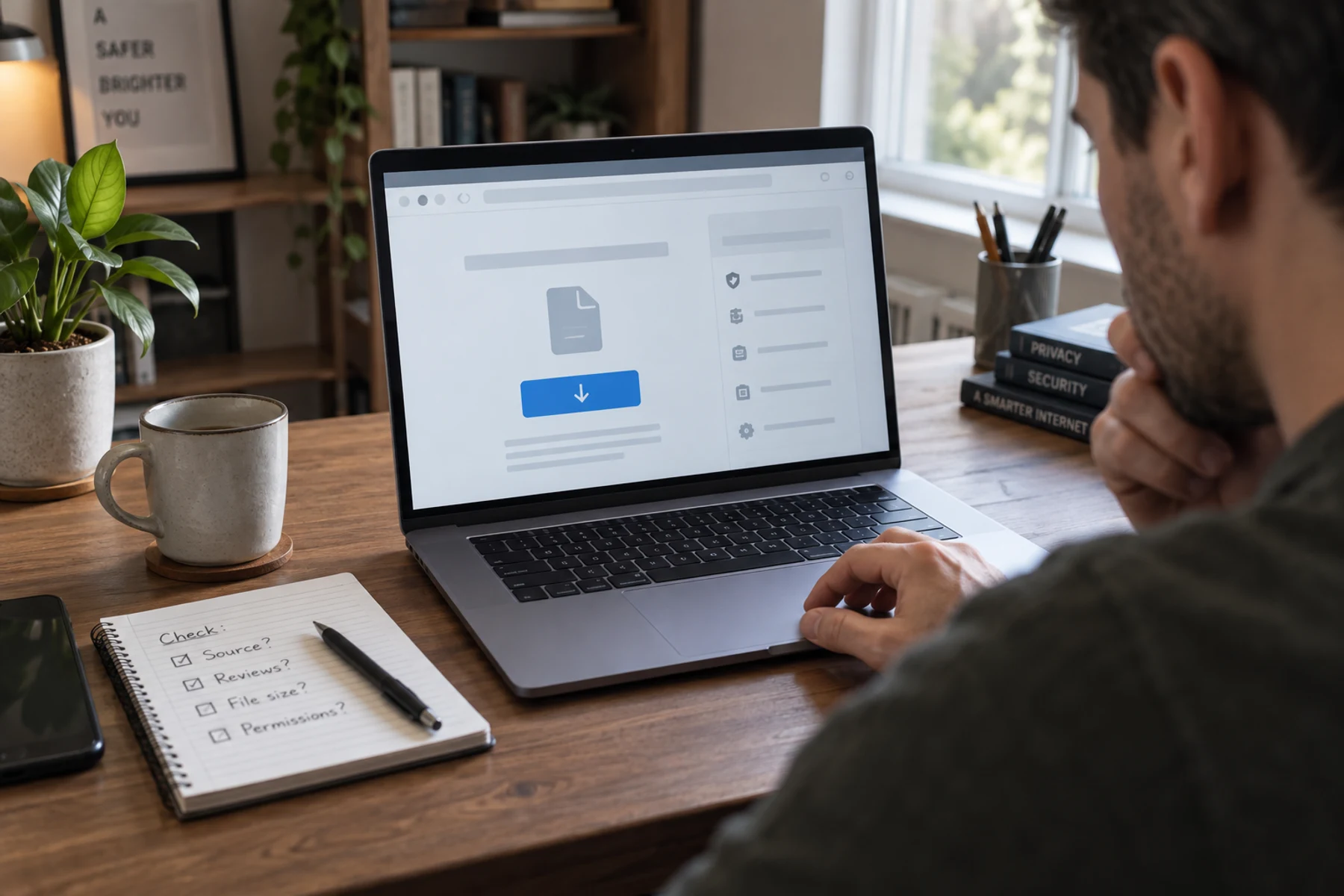
Download pages exploit urgency and visual hierarchy. The largest button is not necessarily the real one, and a polished installer is not necessarily the software you wanted. The safest approach is to verify the destination before you click, then verify the file again before you run it.
Quick scan
In brief
Start from the developer’s known domain or an official operating-system store, not a sponsored result.
Check the link destination, publisher name and file type before opening an installer.
A warning from the browser or operating system is a reason to stop and investigate, not a nuisance to bypass automatically.
1. Find the publisher before the button
Search results can place an advertisement above the developer’s real site. The ad may use the product name and a similar-looking address. Instead of clicking the first result, identify the company or open-source project that maintains the software, then confirm its domain through documentation, a verified social profile or a trusted package directory.
On the page, look for context around the download: release notes, documentation, supported operating systems and a consistent navigation structure. A page whose only purpose is to push a bright button deserves more scrutiny. Open-source projects often link releases from their official repository; commercial tools usually link downloads from their own support or product area.
2. Inspect where the link goes
On a desktop, hover over the button and read the destination shown by the browser. On a phone, a long press often reveals the link. A separate content-delivery domain can be legitimate, but a misspelled name, an unfamiliar shortened link or a chain of redirects is a reason to stop.
Be especially careful with pages that show several identical buttons, countdown timers or messages claiming your browser is outdated. Those patterns try to replace a technical decision with urgency. Close the tab and reach the software through the publisher’s support page instead.
Action map
What to do next
| Layer | Focus | Working instruction |
|---|---|---|
| Check | 1. Find the publisher before the button | Search results can place an advertisement above the developer’s real site. |
| Action | 2. Inspect where the link goes | On a desktop, hover over the button and read the destination shown by the browser. |
| Verify | 3. Match the file to the task | A document, font or media file should not normally arrive as a Windows executable. |
3. Match the file to the task
A document, font or media file should not normally arrive as a Windows executable. Common installer extensions include .exe and .msi on Windows, .dmg and .pkg on macOS, and distribution-specific packages on Linux. Double extensions such as invoice.pdf.exe are a classic warning because some systems hide the final extension.
Check the publisher information shown by the operating system. A valid signature does not prove that software is good, but a missing or unexpected publisher is useful evidence. If the project publishes cryptographic checksums, compare the downloaded file using the operating system’s checksum tool before running it.
4. Treat installation choices as security decisions
Read each installer screen. Decline bundled browser extensions, search changes or additional utilities you did not request. An installer that requires administrator access should have a clear reason. A simple user-level tool asking to disable antivirus protection or change accessibility settings is a serious warning.
Microsoft notes that potentially unwanted applications may display advertising, install other software or use a computer for unexpected work even when they do not meet the strict definition of malware. Keep browser and operating-system reputation checks enabled; they add another signal when a file is unusual.
5. If you already ran the wrong file
Disconnect from sensitive accounts, close the program and run the built-in security scan with current definitions. Remove unfamiliar applications and browser extensions. If you entered a password after the installation, change it from a different, trusted device and review active sessions for that account.
Do not rely on deleting the downloaded file; installation may have placed components elsewhere. When a device handles financial, work or identity data and behavior remains suspicious, a clean operating-system reinstall from trusted media is safer than repeatedly installing cleanup tools from search results.