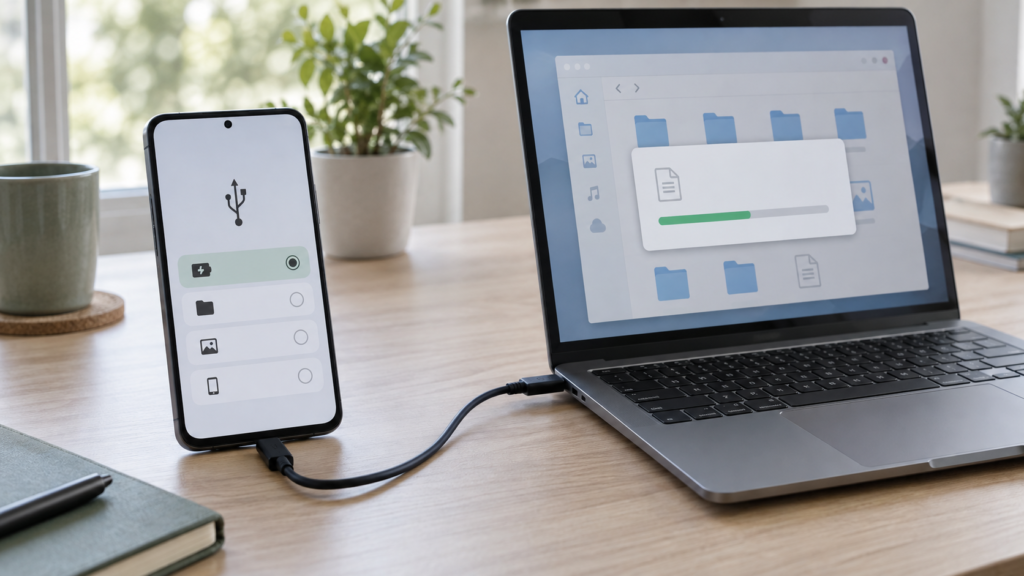
When an Android phone charges from a computer but does not appear in File Explorer, the cable, USB mode, phone lock or Windows device detection may be the cause. Work through the connection in order before changing developer settings or installing drivers.
- Unlock the phone, connect it with a data-capable cable and choose File transfer from the USB notification.
- Many USB cables charge only; try another known data cable and a direct port on the PC.
- Test the phone with another computer and the PC with another device to isolate the failing side.
- Use the official Android transfer instructions; avoid random “phone driver” packages and USB debugging as a first fix.
The phone vibrates, the battery icon changes, and the computer does nothing. That is one of the most common confusing USB problems because power and data are separate functions. A cable can deliver electricity while carrying no data. A phone can also default to charging mode until you unlock it and choose how USB should be used. If either side does not complete that handshake, Windows may never show the phone as a drive.
First decide what you are trying to do. Android’s built-in USB file transfer is useful for copying photos, videos or documents to a Windows PC without waiting for a cloud upload. It is not the same as backing up the entire phone, and it will not expose every app’s private data. For cloud storage questions, see our guide to checking Android backups and Google Account space.
Check the cable and USB mode first
- Unlock the phone. Keep the screen awake while testing. Some Android devices will not show file-transfer controls while locked.
- Connect with a cable that supports data. If you are not sure, use the cable supplied with the phone or a known cable that has transferred files before. A USB-C plug alone does not guarantee the cable has data wiring.
- Tap the USB notification. Pull down the notification shade and look for a message such as “Charging this device via USB.” Open it, then choose “File transfer” or “Transferring files.” The exact wording varies by Android version and manufacturer.
- Wait for Windows to enumerate the phone. Open File Explorer and check This PC. A file-transfer window or portable device may appear. If a permission prompt appears on the phone, approve only the connection you initiated.
- Eject before unplugging. When the copy finishes, use Windows’ safe removal option if available, or close any file transfers and wait for activity to stop before disconnecting.
| What happens | Likely cause | Next test |
|---|---|---|
| Phone charges but has no USB notification | Charge-only cable, loose port or phone did not recognize the connection. | Try another data cable and a different direct USB port. |
| Notification appears but File transfer is not selected | Phone is in charging-only mode. | Unlock the phone and select File transfer in the USB options. |
| File transfer is selected but Windows shows nothing | Windows detection, driver, port or stale device state. | Restart both devices once, then test another computer or device. |
| Phone appears but some folders are empty | Android limits what is exposed over USB; app-private data may not be accessible. | Use the app’s export or backup feature rather than expecting a full disk view. |
| Copy starts then fails | Unstable cable, port, device lock, insufficient space or a very large transfer. | Try a smaller file batch, keep the phone unlocked and check free space on both ends. |
Isolate the phone, cable and computer
Change one component at a time. Connect the phone to a second computer using the same cable. If file transfer works there, the original PC is the stronger suspect. If it still only charges, change the cable and repeat. Then connect a different phone or data device to the original PC’s port. This simple matrix separates a phone-side setting, a cable problem and a Windows detection problem more reliably than reinstalling drivers at random.
Prefer a USB port directly on the computer for the first test. A monitor hub, keyboard port, dock or unpowered hub can add another connection layer. If a direct port works but a dock does not, check the dock’s power and compatibility rather than changing the phone’s developer settings. On a desktop, try a rear motherboard port as well as a front panel port; front connectors and cables can be faulty or configured differently.
Inspect the ports for lint or damage without inserting metal tools. Do not force the connector or wiggle it aggressively. If the cable feels loose, the phone disconnects when lightly moved, or charging is intermittent too, stop and have the port checked. Repeatedly reconnecting an unstable port during a large transfer can corrupt the copy.
If Windows does not recognize the phone
Restart the phone and Windows once, reconnect directly, unlock the phone and select File transfer again. Google’s Android Help also recommends checking that Windows detects new hardware and trying a different cable; not all cables transfer files. If the phone works on another computer but not this one, open Device Manager and check for an unknown portable device or a warning icon after plugging it in. Note the error before changing anything.
Windows usually installs the standard device support automatically. If the PC manufacturer or phone maker provides a specific driver for your model and current Windows release, use that official support page. Avoid bundled “Android manager,” “USB repair” or driver-update utilities from download sites. You do not need to enable USB debugging merely to copy ordinary files, and it expands the device’s development interface without solving a bad cable or incorrect USB mode.
If you have previously selected “No data transfer” as the default, the USB notification still lets you change the current connection on many devices. The default setting and its menu vary by manufacturer. Use Settings search for “USB” or consult the support page for your exact phone rather than following a video filmed on a different Android version. Avoid changing developer-option defaults unless the manufacturer’s instructions specifically call for it.
What you can and cannot copy this way
File transfer gives access to user-visible files that the phone exposes—often photos, videos, downloads, music and documents. It is not a complete phone clone. Modern Android storage protections prevent a computer from browsing most apps’ private databases. Messaging history, authenticator accounts, app preferences and some game saves may need an in-app export, cloud backup or device-to-device transfer. If a folder is absent, it does not necessarily mean that data is lost.
For photos, make a test copy of a small group first, open a few files on the PC and confirm dates and filenames before moving a large library. Copy rather than cut-and-paste until you know the destination is correct and readable. Keep a second copy of irreplaceable items before deleting them from the phone. A USB transfer is a transfer path, not by itself a backup strategy.
When a wireless or cloud method is better
If the port is damaged or the cable is unavailable, Google offers Quick Share for Windows on supported setups. Cloud upload can also work for a small set of documents, but it uses account storage and may take longer for large videos. The right method depends on file size, privacy, network access and whether you need a one-time move or a repeatable backup. Avoid public shared computers for sensitive files, and remove local copies from a shared PC when the transfer is complete.
Our separate USB-C cable and charger guide explains why the connector shape alone says little about a cable’s data and power capabilities. That same uncertainty is why swapping in a known data cable is the fastest first test here.
Bottom line
When an Android phone only charges, start with the simplest handshake: unlock it, use a data cable, select File transfer, and give Windows a moment to detect the device. Then isolate cable, phone and PC one at a time. Use official drivers only when the exact model calls for them, and do not enable USB debugging to solve an ordinary file-copy problem.
Sources and further reading
- Android Help: transfer files between a computer and Android device.
- Android Help: back up or restore Android data.
- Microsoft Support: fix USB-C problems in Windows.