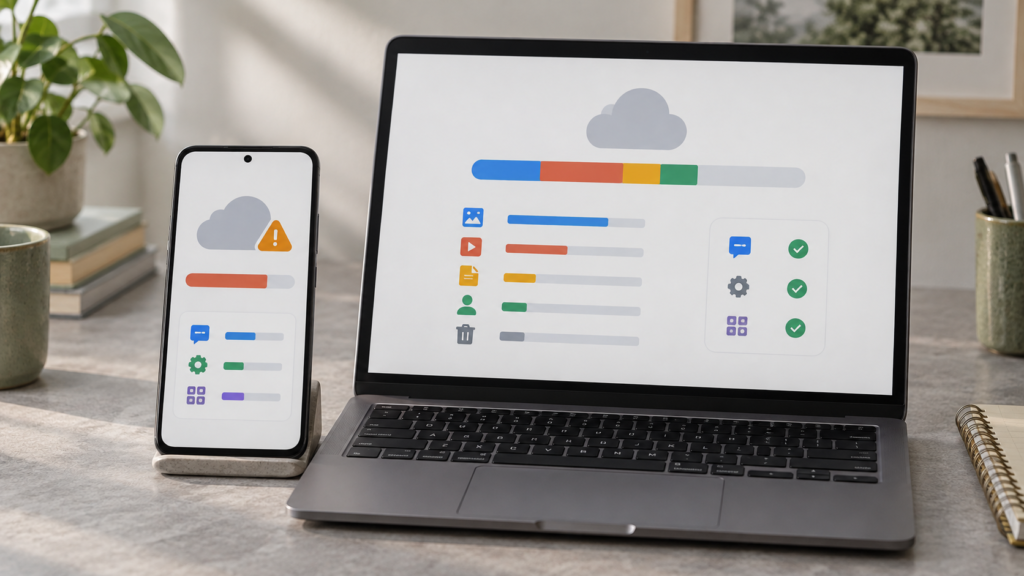
An Android phone backup can include more than photos: apps and app data, call history, contacts, settings, and messages may also use your Google Account quota. Google announced a broader backup-storage policy in 2026, so check the account breakdown before deleting memories or turning backup off.
- Google Account storage is shared across Gmail, Google Drive and Google Photos; Android backups can add another visible usage category.
- Google says Android backup can include apps and app data, call history, contacts, device settings, and SMS/MMS. Some app data is handled separately or may not restore.
- In July 2026, Google announced that all data in Android device backups would count toward the quota as the change rolled out to existing users.
- Check both Google One storage and the phone’s Backup details before deleting anything.
The warning often arrives at the wrong moment: you try to take a photo or save a document, and Google says the account is nearly full. It is easy to assume Photos must be the only cause. But Google Account storage is shared across services, and Android backup can include messages, call history, settings and app data as well as content you recognize as “files.” The exact amount depends on the account, device, enabled backup types and which apps participate.
Google announced a change to Android backup storage in July 2026. Its Google One team said that previously some backup data—including MMS and certain app data—already counted, and that the policy would expand so all data backed up from an Android device counts toward the account quota. The rollout was described as happening over the following weeks, with new controls for Android 9 and newer. Google’s current Android Help documentation lists the usual backup categories, but your own storage page is the reliable place to see how much space this account is using today.
First, separate three kinds of “full”
| What is full? | Where to look | What it affects |
|---|---|---|
| Google Account quota | Google One storage manager or the storage page in your account. | Shared online space across Gmail, Drive, Photos and eligible backups. |
| Phone’s internal storage | Android Settings → Storage. | Apps, downloads, cached data and local photos can prevent new local files or updates. |
| One app’s storage | That app’s own storage or account settings. | Offline media, downloads, chat history or cache may be large even when the Google Account has room. |
Freeing Google Account space does not automatically free the same amount of internal phone storage, and clearing the phone does not necessarily reduce the cloud quota. Before you delete something, identify which meter is red. The Google One storage manager can show usage by service; on the phone, Settings → Storage shows local use. Menu wording varies by Android version and manufacturer, so searching Settings for “Backup” or “Storage” can be faster than following an exact screen path from a different model.
What Android backup can contain
Google’s Android Help lists apps and app data, call history, contacts, device settings, and SMS and MMS messages among the data that may be backed up to a Google Account. Additional information can be backed up through specific Google apps—for example, RCS messages through Google Messages, certain call settings through Phone by Google, and photos and videos through Google Photos. That does not mean every app includes all of its data: Google explicitly notes that app backup and restore support varies by developer. Some app data may be excluded, encrypted, or available only through that app’s own account.
This distinction helps explain why the account total may change even if you did not upload a new photo. Device settings and message data are less visible than a large video library, and the phone’s backup status may update on a different schedule from the storage summary. Google says a device backup can take up to 24 hours to complete. A number that has not updated immediately is not proof that a setting did nothing.
Find the category that is actually using space
- Open the Google One storage manager. Sign in to the account that backs up this phone, then review use by Google Photos, Drive, Gmail and other listed categories. If you have more than one Google account on the device, confirm you are looking at the backup account rather than the account currently open in Photos.
- Check Android’s backup screen. Open Settings and search for “Backup.” Depending on your phone, it may appear under Google → All services → Backup, or under a manufacturer’s account and backup menu. Read the account name, backup status and the data types shown.
- Review details, not just the total. Look for which categories or apps are selected. If your phone offers individual backup controls, decide which items you would want when replacing or resetting the phone.
- Compare with Photos, Drive and Gmail. A full quota may be mostly large videos, Drive files, email attachments or trash—not the phone backup. Do not disable the backup just because the account’s top-level meter is high.
- Wait for a completed backup status. If the last backup is pending or paused, make a note of that before changing settings. A missing backup can be more serious than a storage warning.
Choose what to keep before you delete
Start with data that would be painful to recreate: account access, contacts, messages, settings and app records that matter. If the phone offers a choice of backup types or apps, turn off only items you understand and do not need restored. Confirm that another method covers anything you remove. For example, an authenticator app may have its own transfer or recovery procedure; a generic device backup should not be assumed to preserve every login secret.
Deleting an old or unused phone backup can free space, but read the confirmation carefully. Google warns that backups are managed collectively in parts of the account dashboard: a broad “Delete all data” action can permanently remove all device and WhatsApp backup data associated with the account. Do not click a bulk-delete control just to test how much space it might save. If the backup is the only copy of messages or settings you need, deleting it could make the next device migration harder.
For Photos, inspect the backup account and the web library before deleting originals. Google Photos can synchronize deletions across devices, and a cloud library is not the same thing as an independent archive. Our iPhone storage guide explains the related sync-versus-backup trap in iCloud Photos; the account controls differ, but the general rule is the same: verify the copy and deletion behavior before cleaning up.
If the account is over quota
Google says Android backups may pause if the account is over its storage limit. Other Google services can also be constrained. First identify the largest categories and make a measured cleanup: large unneeded Drive files, unwanted email attachments, items you truly do not need in Photos, and trash that you have already reviewed. Google One’s storage manager is designed to help locate large items, but it cannot decide whether a file is your only copy.
After a cleanup, allow the service time to recalculate and check whether a backup resumes. If space is still insufficient, choose deliberately between a smaller backup, a different account where appropriate, another secure backup method, or more Google storage. Moving a backup account can affect device setup and recovery, so write down which account owns it and make sure you can sign in before switching.
Do not treat a storage warning as a reason to disable every safety feature. If you turn off device backup, understand what will no longer be included and arrange an alternative for data you cannot replace. A second backup on a separate medium can be useful for irreplaceable files; for Android app settings and messages, check what your device and each app actually support.
Common mistakes that make cleanup risky
- Deleting photos to solve an unrelated backup issue. Check the storage breakdown first; the issue may be Gmail, Drive or device backup.
- Confusing the phone’s local storage with the online quota. They are separate meters and need different cleanup steps.
- Turning off backup without recording what was selected. Make a list or screenshots so you can restore the intended settings later.
- Assuming every app restores fully. Check app-specific export, sync and recovery options for important data.
- Removing the only backup before a phone reset or trade-in. Verify the replacement device has received the data you need before wiping the old one.
The practical takeaway
Android backup can consume Google Account space even when you are not adding visible photos or documents. Google’s 2026 policy update expanded what backup data counts toward storage, while the account quota remains shared with Gmail, Drive and Photos. Check the storage manager and the phone’s backup details together. Then make one targeted change, protect data you would miss, and wait for a completed backup status before you factory-reset, switch accounts or delete an old device backup.
Sources and further reading
- Google One Community: Android device backup storage update and new controls (July 14, 2026).
- Android Help: back up or restore data on an Android device.
- Google One Help: how Google Account storage works.
- Google One Help: clean up and fix storage issues.