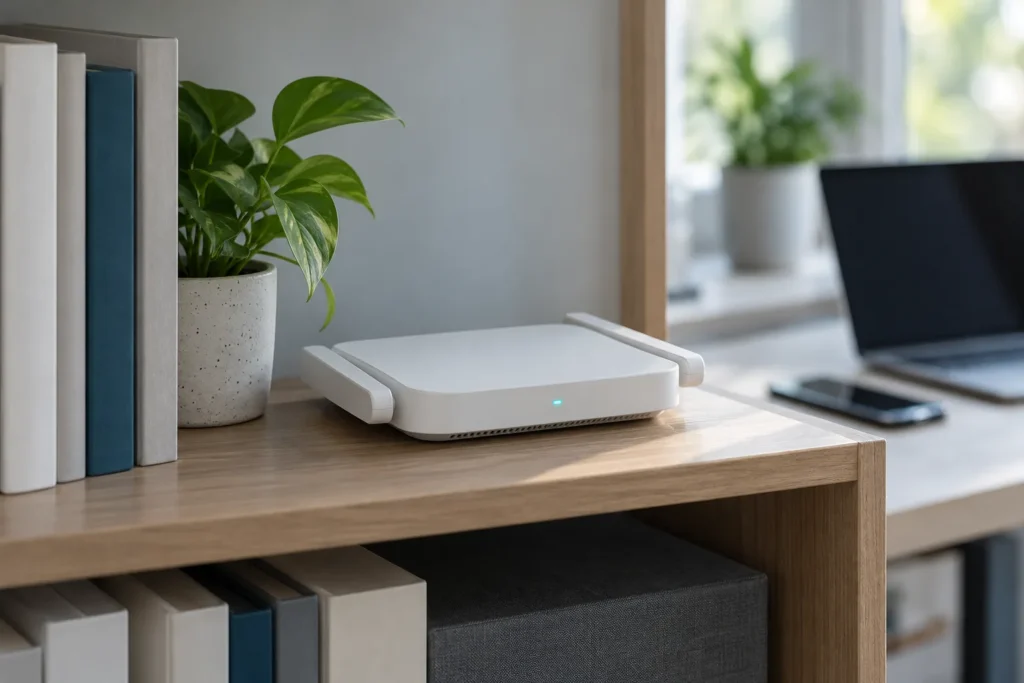
The short answer for most households is no, not this year, unless one of three things is true. Wi-Fi 7 is real and fast on paper, but its best features need a Wi-Fi 7 device on the other end, a fast internet plan behind the router, and a home where range is not already your main problem. This guide helps you check each in a few minutes, before a sale price decides for you.
What Wi-Fi 7 actually adds
The Wi-Fi Alliance, which certifies the standard, names these headline features on its Wi-Fi 7 page:
- 320 MHz channels in the 6 GHz band, which the Alliance says provide twice the throughput of Wi-Fi 6. Its announcement says they are “available in countries that make the 6 GHz band available to Wi-Fi” and double the widest channel size used today. A wide channel needs open spectrum; in a crowded apartment building, the real width you get can be narrower.
- Multi-Link Operation (MLO), which “allows devices to transmit and receive data simultaneously over multiple links,” for higher throughput, lower latency and better reliability.
- 4K QAM, which the Alliance says achieves 20 percent higher transmission rates than Wi-Fi 6’s 1024 QAM.
- Operation across 2.4, 5 and 6 GHz, with Wi-Fi 7 introduced in 2024.
The Alliance gives no real-world speed or latency numbers on those pages, and the “twice” figure compares channel width and throughput under ideal conditions. It is a ceiling.
The catch on the client side
These features are described as things devices do: devices transmit across multiple links, devices use 320 MHz channels. That means a Wi-Fi 7 router only delivers Wi-Fi 7 behavior to a device that supports it. The Alliance’s certification seal designates products with “proven interoperability, backward compatibility,” so older devices keep working on a new router, but they connect at their own generation’s speeds. Before you spend, list the devices that would benefit (a recent laptop, a flagship phone, a game console, a TV) and check each one’s specification sheet for Wi-Fi 7 or 802.11be. If none lists it, your new router would be a Wi-Fi 6 experience for everything in the house. Our laptop buying guide lists Wi-Fi standard among the specs to check.
The 6 GHz piece is also a US rules question. According to the FCC’s April 2, 2020 fact sheet on its 6 GHz order, the Commission made 1,200 megahertz of spectrum available for unlicensed use in the 5.925-7.125 GHz band. Unlicensed access points could operate across that whole range at lower power restricted to indoor use, with no automated frequency control system, and client devices may operate only under the control of such an access point (or a standard-power one). Our reading of that: a router’s 6 GHz radio is built for indoor use, and higher frequencies generally lose range faster, so coverage in far rooms still depends on placement or mesh. The fact sheet describes the order as proposed rules (“would”), so check the FCC’s current text before relying on specific limits.
The internet plan sets the ceiling
Your router cannot make a 300 Mbps plan faster than 300 Mbps. To see which side limits you, test twice: wired to the router (a laptop with an Ethernet port or adapter), then on Wi-Fi standing next to the router. If the wired result matches your plan and Wi-Fi comes close, your Wi-Fi is not the bottleneck and a new router buys you nothing in speed. If Wi-Fi is far below wired, a better router or placement may help. Opinion pieces in search results commonly say that a plan at or below about 1 Gbps rarely benefits from a new standard. That is a rule of thumb, not an Alliance finding, so run your own test.
Decision table
| Your situation | Verdict | Why |
|---|---|---|
| Wi-Fi 5 router, six or more years old, drops connections | Upgrade; Wi-Fi 6 or 6E may be enough | The age of the router matters more than the standard on the box |
| Wi-Fi 6 or 6E router, plan under 1 Gbps, devices mostly older | Keep it | Little to gain until devices and plan change |
| Multi-gigabit plan, several Wi-Fi 7 devices, wired backhaul | Consider Wi-Fi 7 | This is the case the standard was designed for |
| Dead spots in far rooms | Add a mesh node or a wired access point first | Coverage depends on placement, not the standard |
| Large house, many devices | A mesh set with wired links between nodes | A single router cannot cover everything, whatever its generation |
| Heavy video calls and gaming lag spikes | Check congestion and channel use first | MLO may help later, but the cause is often interference |
Mesh or single router?
If the complaint is a weak signal upstairs, no standard fixes physics. Moving the router to a central spot, raising it off the floor and away from metal, or adding a node usually does more. A mesh system lets devices roam between nodes; connecting nodes by cable improves it further. Mixing brands or generations in one mesh is a compatibility question for the specific products, so check the maker’s documentation before buying a lone extra node.
Buying traps in sale listings
- Dual-band “Wi-Fi 7” models. A Wi-Fi 7 label does not by itself tell you which bands the router has. Check the spec sheet for 6 GHz (tri-band) and for 320 MHz support before paying for the label.
- Speed class numbers in model names usually add up the maximums of every band, which no single device can use at once. Ignore them and compare channel widths and ports.
- Missing 320 MHz. Look for the channel width in the specifications rather than assuming it.
- Fast Wi-Fi, slow cable. A router with a single 1 Gbps Ethernet port or WAN port caps wired speed. Check the port list if your plan is faster.
- Region rules. Use of 6 GHz channels depends on local rules; the Alliance notes the 320 MHz channels need the band to be available.
If you do buy
- Rename the new network the same as the old one only if you want devices to move over automatically; otherwise use a new name so you can test.
- Change the default admin password and update the router’s firmware before connecting everything.
- Repeat the wired and Wi-Fi tests. If Wi-Fi next to the router is not clearly better, return it within the return window.
- Keep the old router’s settings page open to copy over anything you configured, such as reserved addresses for printers.
A television is the device most likely to be sold on Wi-Fi speed and least likely to need it, since streaming video needs far less than the headline figures. Spend that attention on its data settings instead; see our guide to turning off smart TV viewing tracking.
Three households, three answers
A two-person apartment with a 500 Mbps plan and a Wi-Fi 6 router. The plan is the limit, the devices are mostly a few years old, and coverage is fine. Keep the router. Revisit when the plan or the laptops change.
A family house with a gigabit plan, a six-year-old router, and slow Wi-Fi upstairs. The cause is probably coverage and age. A mesh kit or a wired access point on the upper floor is the first purchase; whether it is Wi-Fi 6, 6E or 7 matters less than whether nodes connect by cable.
A home office with a multi-gigabit connection, a new laptop and a phone that both list Wi-Fi 7, and a cable run to the router. This is where Wi-Fi 7 may be worth it now, because both ends of the link can use wider channels and MLO. Even here, test it against your current router; the improvement can be modest if neighbors crowd the 6 GHz band.
Sources
- Wi-Fi Alliance: Wi-Fi CERTIFIED 7
- Wi-Fi Alliance: introduces Wi-Fi CERTIFIED 7 (January 8, 2024)
- FCC: Fact Sheet, Unlicensed Use of the 6 GHz Band (April 2, 2020)
Checked October 30, 2026. Feature descriptions are the Wi-Fi Alliance’s; thresholds and buying advice are our own.