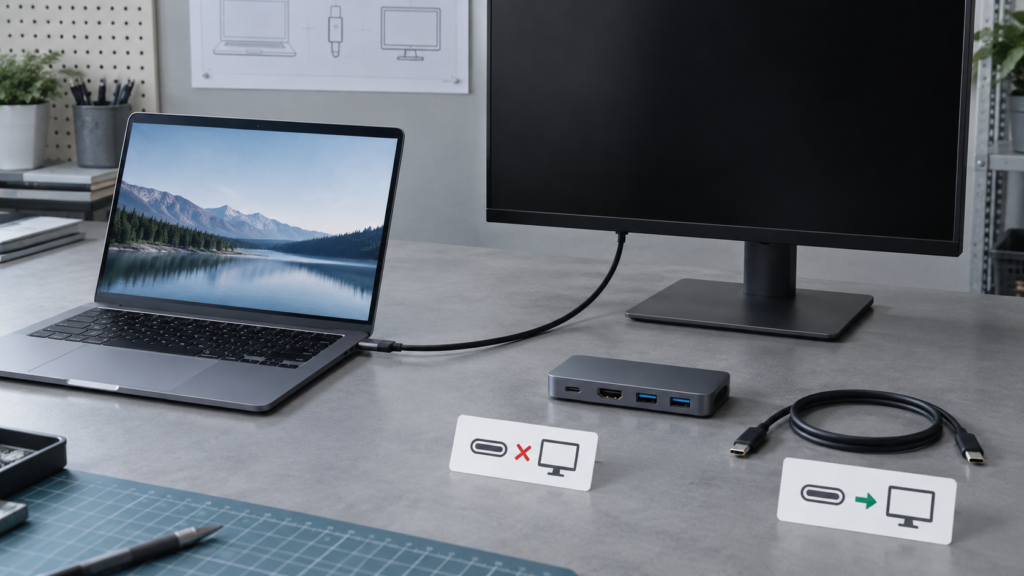
A USB-C plug can charge a laptop and still carry no picture. Work through the laptop port, cable, monitor input and dock as separate parts of the video path before buying adapters or reinstalling drivers.
- USB-C describes the connector shape, not a guarantee of video output.
- For a direct USB-C display connection, the laptop, monitor and cable must support a compatible video mode—often DisplayPort Alternate Mode.
- Test one screen directly, with the dock and other USB-C accessories removed.
- Power delivery, USB data and video are separate capabilities; charging alone does not prove that video is supported.
You connect a monitor with one USB-C cable, the laptop begins charging, and the screen still says “No signal.” It looks like a simple cable fault, but that single cable may be expected to carry power, USB data and a display signal. Those functions do not automatically come together just because the plug fits.
The frustrating part is that the setup can look nearly right: the monitor wakes, the laptop makes a connection sound, a USB keyboard on the display works, or the battery icon changes. Each of those observations proves something different. This guide separates the path into small tests so you can identify what is actually missing without buying a handful of random cables.
First, understand what has to carry the picture
USB Type-C is a connector and connection standard. A particular port can support charging, data, video, or a subset of those features. Video over USB-C commonly uses DisplayPort Alternate Mode; some hardware also supports Thunderbolt or USB4 display paths. Microsoft’s own troubleshooting guide makes the compatibility chain explicit: the PC, external display and cable all need to support the relevant display mode, and the adapter or dock must be connected to a port that supports it.
That is why “it has USB-C” is not a sufficient compatibility check. Two ports that look identical on the same laptop may have different capabilities. Some manufacturers mark a capable port with a DisplayPort logo, a lightning-bolt symbol, or a monitor icon, but symbols are not consistent across every model. The manual or the maker’s exact product specifications are more reliable than the shape of the socket.
| Part of the chain | What to confirm | What a failure can look like |
|---|---|---|
| Laptop port | Supports video output over USB-C, such as DisplayPort Alt Mode, Thunderbolt or USB4 | Charging or USB data works, but no USB-C monitor is detected |
| Cable | Supports the video mode and data rate required by this setup | Display works with another cable, or only at a lower mode |
| Monitor | USB-C input accepts video—not just USB data or charging | Monitor stays on another input or never detects a source |
| Dock or adapter | Supports the laptop’s signal path and the monitor’s output/input combination | A direct connection works, but the dock path does not |
Run this low-risk test sequence
1. Select the monitor’s USB-C input manually
Use the monitor’s on-screen controls and choose USB-C as the input instead of relying on automatic source selection. If the monitor has more than one USB-C port, check the manual: one may be upstream for connecting a computer while another is intended for accessories or charging. Confirm that the monitor is awake and not in a deep power-saving state. A monitor can be fully powered and still listen to the wrong input.
2. Remove the dock and test one direct connection
Disconnect the dock, hub, KVM switch, USB extension and other display adapters. Connect the laptop directly to the monitor with one cable, then reconnect the laptop’s normal charger separately if needed. This is a diagnostic test, not a permanent recommendation. It removes intermediate devices from the signal path and makes the result useful: if direct USB-C works, the laptop and monitor can negotiate video, and the dock/cable combination deserves the next check.
If the laptop has a built-in HDMI or DisplayPort output, test the monitor through that as a separate baseline. A working HDMI connection proves that the display panel and at least one monitor input work; it does not prove the laptop’s USB-C port can send video. Likewise, one USB-C port working does not guarantee that every USB-C port on the laptop has the same feature set.
3. Verify the exact laptop port’s video capability
Find the manufacturer’s support page or manual for the full model number, not just the product family. Look for wording such as “DisplayPort over USB-C,” “DP Alt Mode,” “Thunderbolt display output,” or supported USB4 display features. If the document says the port is data-only or lists charging and data without display output, no driver setting or passive cable can add a missing hardware path.
Do the same for the monitor. A USB-C port may provide power to a connected laptop while accepting video only through HDMI or DisplayPort. Check whether its USB-C input is intended as a display input and what resolution and refresh rate it supports over that connection.
4. Check the cable as a video component
A cable can fit, charge a device and pass basic USB data while lacking the bandwidth or wiring required by your display mode. Try a cable supplied with the monitor or one documented by the laptop, monitor or dock maker as supporting the relevant video connection. Avoid assuming that a thicker cable, a high-wattage charging label or a “USB-C” product title means it carries display signals.
Change only the cable for this test. Keep the same port, monitor input and other settings. If the picture appears, you have isolated the cable path. For general cable capability checks, see our guide to USB-C charger and cable compatibility; its key lesson applies here too: connector shape and advertised charging wattage are not enough to identify every cable feature.
5. Ask Windows to look for the display
After confirming a direct and compatible connection, press Windows key + P and choose Extend or Duplicate. Then open Settings → System → Display. If the second screen is missing, use the display-detection control. Check whether Windows sees a display but has placed it in a disabled, disconnected or unusual arrangement. When it is detected, start with a modest resolution and refresh rate supported by both devices before trying a high-refresh or ultrawide mode.
If the display used to work and stopped after a graphics or system update, restart the laptop and monitor once, then check Windows Update and the laptop maker’s graphics/USB-C firmware guidance. Microsoft also documents a graphics-driver reset shortcut for certain external-display problems. Use it only after saving work, and avoid jumping straight to third-party driver updaters or removing several drivers at once; those steps add variables before you know whether the signal reaches Windows.
What changes when a dock is involved?
“USB-C dock” covers more than one design. A basic USB-C hub may pass the laptop’s native DisplayPort signal through to HDMI or DisplayPort. It generally still depends on the laptop’s USB-C port supporting video. A DisplayLink dock uses a different approach and requires its supported driver/software path; connect the monitor to the dock’s specified HDMI or DisplayPort output and follow the maker’s setup instructions. Do not assume that a USB-C-shaped socket on a dock is a video output—on many docks it is intended for data or peripheral expansion.
Test the dock with its own power adapter where required, one monitor, and the dock’s documented host cable. Check that the laptop is connected to the dock’s host/upstream port, not a downstream accessory port. Some laptops also limit how many external displays they can drive or which combinations of resolution and refresh rate fit within the available bandwidth. A dock that worked with one computer is not proof that every feature will work with a different laptop.
Quick symptom-to-test map
| Symptom | Most useful next test | Avoid concluding |
|---|---|---|
| USB-C charges laptop; monitor says “No signal” | Confirm video support on the exact port and cable | “The port is fine because it charges” |
| Monitor works over HDMI but not USB-C | Check USB-C input selection and Alt Mode support | “The monitor is broken” |
| Direct connection works; dock does not | Check dock host port, power, mode and firmware | “Any USB-C hub should pass video” |
| Display appears then disconnects at high refresh rate | Test a lower supported resolution/rate and a documented cable | “The panel has failed” |
| Windows detects no second display at all | Recheck the signal path before changing graphics settings | “A driver reinstall is the first fix” |
What user reports tell us—and what they cannot
USB-C hardware discussions repeatedly surface confusing combinations: a laptop charging through the same cable that produces no image, an old cable that works on one device but not another, or a dock output that behaves differently from a direct connection. A recent r/UsbCHardware troubleshooting thread illustrates why people can spend time swapping adapters before checking whether that exact port carries DisplayPort video. These posts are useful for understanding the frustration and the language people use when asking for help; they are individual reports, not evidence that a particular model or update has a widespread defect.
Before buying anything
- Write down the full laptop model and identify the exact USB-C port you used.
- Check the laptop’s port specifications and the monitor’s USB-C input specification.
- Try manual input selection and one direct connection with the dock removed.
- Test a known video-capable cable; do not shop by plug shape or charging wattage alone.
- If using a dock, identify whether it passes native video or uses DisplayLink, and use its labeled host and display ports.
- Record whether Windows detects the monitor, whether HDMI works, and what changed before the fault began.
When to escalate
If a documented video-capable port, known-good cable and direct monitor input still fail across restarts, stop buying adapters and collect the exact models, port labels, Windows version, monitor input, cable rating and test results. Check the PC and monitor maker’s support pages for BIOS, USB-C or firmware advisories, and contact support with those facts. If another cable or device is needed for a controlled test, borrow one before purchasing. A precise record of what works and what does not is more useful than a long list of random swaps.
Sources and further reading
- Microsoft Support: Fix USB-C problems in Windows.
- Microsoft Support: troubleshoot external monitor connections.
- Community example: USB-C dock and external-monitor troubleshooting (anecdotal).