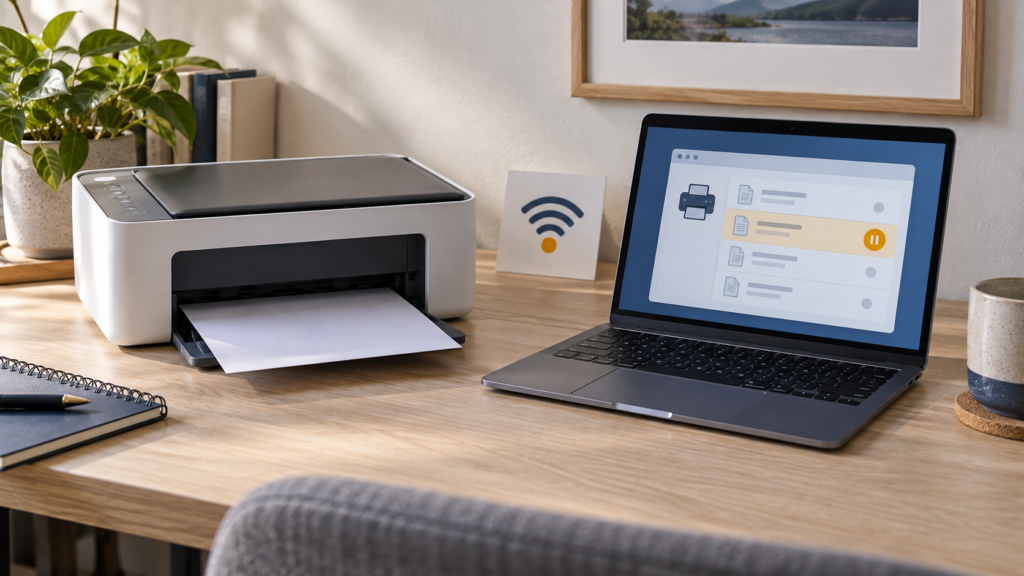
A printer can say “Offline” while powered on because Windows is talking to the wrong queue, a job is stuck, the Wi‑Fi address changed, or the connection dropped. Check the path in order before removing the printer or reinstalling its software.
- Check the printer panel, paper, connection and whether other devices can print.
- Clear only the stalled print queue, confirm the intended printer is selected, and restart Print Spooler if needed.
- For network printers, reconnect the printer and PC to the same intended network; do not assume the printer’s name proves it is reachable.
- Some ARM-based Windows PCs cannot install printers through a manufacturer’s traditional installer; Microsoft recommends the Windows add-printer flow in that case.
“It worked yesterday” is the classic printer problem. The device is on, the Wi‑Fi icon looks normal, and Windows still insists it is offline. That status does not tell you exactly where the connection broke. Windows may have selected an old printer queue, the printer may have joined a different wireless network, a print job may be holding the queue, or the device could have received a new network address.
Start by testing a small job from one application, not repeatedly clicking Print in every open document. If several files are queued, they can all wait behind one malformed or very large job. The following sequence separates a printer-side problem from a Windows queue or network issue, and avoids deleting settings before you know which part failed.
Identify the connection path
| Connection | What to check first | Useful isolation test |
|---|---|---|
| USB cable | Firm cable connection, direct PC port, powered printer. | Try another direct USB port or a known cable; avoid a hub for the first test. |
| Wi‑Fi or Ethernet | Printer network status and the network name; PC is on the intended home or office network. | Print the printer’s network status page or try printing from another device. |
| Shared office printer | Whether the print server, VPN or organization connection is available. | Ask IT whether other users can print before changing the queue. |
Check the printer before Windows
Look at the printer’s own screen or status lights. Clear a paper jam, close open covers, reload paper and check ink or toner messages. If the printer is asleep, wake it with its physical button rather than repeatedly sending jobs. For a network printer, open its control panel or print a network report and confirm it is connected to the expected Wi‑Fi name. A router restart, password change or move to a guest network can leave the printer disconnected while the PC remains online.
For Wi‑Fi printing, the computer and printer generally need a route to each other. Guest Wi‑Fi and client isolation can prevent devices from communicating even when both show internet access. A work laptop on a VPN may also be unable to see a local printer, depending on company policy. If the printer works from a phone but not a managed laptop, ask IT before disabling the VPN or changing security settings.
If you use a USB cable, unplug it once, inspect both connectors, then connect directly to the PC. A hub or docking station adds another failure point. Do not swap multiple cables and printer settings at once; test one change, then print one simple page.
Make sure Windows is addressing the right printer
Open Settings → Bluetooth & devices → Printers & scanners. Confirm the displayed name and model correspond to the physical device; old queues and duplicate entries can look nearly identical. If the printer is set as default automatically, Windows may switch the default to the last printer used. Select the intended device and open its print queue. If you need a stable default, turn off “Let Windows manage my default printer” before setting it manually.
Inspect the queue. A paused queue or one stuck job can block everything behind it. Cancel the specific stalled document first; if the queue is clearly jammed and you are sure no one else is printing, use the queue’s “Cancel all” option. Wait for it to empty before sending a new test page. On a shared printer, check with coworkers before clearing the queue because their jobs may be waiting there too.
Restart the Windows print service when jobs will not clear
Windows Print Spooler manages the local print queue. If documents remain stuck after you cancel them, open Start, search for Services, and open the Services app. Find Print Spooler, right-click it and choose Restart. You may need administrator permission. Then reopen the printer queue and confirm the old jobs are gone before sending a small test page. This is a service restart, not a printer reset; it does not change the printer’s Wi‑Fi credentials or network configuration.
If the queue immediately fills again, stop sending jobs and note which document or application triggers it. A damaged file, incompatible driver or application-specific print setting may be the real cause. Test with a plain text page or Windows’ test page. If only one application fails, update or repair that application rather than reinstalling the entire printer stack.
Reconnect a network printer carefully
For a wireless printer, confirm the network name from the printer’s control panel or network report. Reconnect it to the correct private network using the manufacturer’s documented method. A printer connected to a guest Wi‑Fi network may reach the internet but remain invisible to your laptop. Avoid factory-resetting the printer unless you have the network password and setup instructions available.
If the printer is still unreachable, restart the printer and router once, then wait for both to reconnect before checking Windows again. If a printer used a fixed IP address and the router changed its subnet, the old queue may point to an address that no longer belongs to it. Do not assign a random static address. Use the printer’s official setup utility or contact the network administrator to confirm its current address and the right way to update the queue.
When only one PC is affected, remove and re-add the printer as a later step. In Settings → Printers & scanners, choose the exact device, select Remove, restart Windows, then use Add device. If Windows does not find it, follow the printer maker’s documentation for your exact model. Avoid adding the same printer repeatedly under different names; duplicate queues make it harder to know where jobs are going.
A note for Windows on ARM
Microsoft has documented a specific installation problem: some ARM-based Windows PCs may not be able to add or install a printer through a manufacturer-provided installer. Microsoft’s example is a Copilot+ PC, but the key is the processor type, not the marketing label. Check Settings → System → About → Device specifications; Windows identifies an ARM-based processor under System type.
For the affected setup, Microsoft recommends using Windows’ Add or install a printer instructions rather than the maker’s traditional installer, unless the manufacturer provides different guidance. That is a good reason to identify the PC architecture before repeatedly running an installer or downloading an older package. It is not a reason to assume every ARM computer or every printer is incompatible.
When reinstalling is justified
Remove and re-add the printer if the device is connected, the queue is clear, the correct printer is selected, and Windows still cannot communicate with it. Before removing it, note any custom settings such as duplex printing, paper size, trays or color mode. Then restart the PC and printer, add the device through Windows, and install only the exact manufacturer driver or app required for your model and Windows architecture.
If the error began after a driver update, check the printer maker’s current support notes and Windows Update history. A newer driver may help, but avoid “universal” driver sites and driver updater programs. For managed PCs, use the organization’s software portal or contact IT; administrative restrictions may be intentional.
If the printer is still offline
Gather evidence instead of repeating the same steps. Record the printer model, connection type, Windows version, exact status message, any queue error, and whether other devices can print. If possible, print the printer’s own configuration or network report. This can tell support whether the problem is on the printer, local PC, Wi‑Fi or server side. If the printer is on a home wireless network, our methodical home Wi‑Fi guide explains how to distinguish a local wireless problem from an internet outage; the printer may still require a separate local-network check.
Bottom line
Start at the printer, identify USB versus network connection, verify the selected Windows queue and clear a genuinely stalled job. Restart Print Spooler only when needed, and remove/reinstall after simpler checks. For network printers, confirm the correct network; for ARM PCs, use Microsoft’s Windows setup flow when the manufacturer installer is incompatible. A small test print after each change makes the cause visible and keeps the fix reversible.
Sources and further reading
- Microsoft Support: troubleshoot offline printer problems.
- Microsoft Support: fix printer connection and printing problems.
- Microsoft Support: help installing printers on ARM PCs.