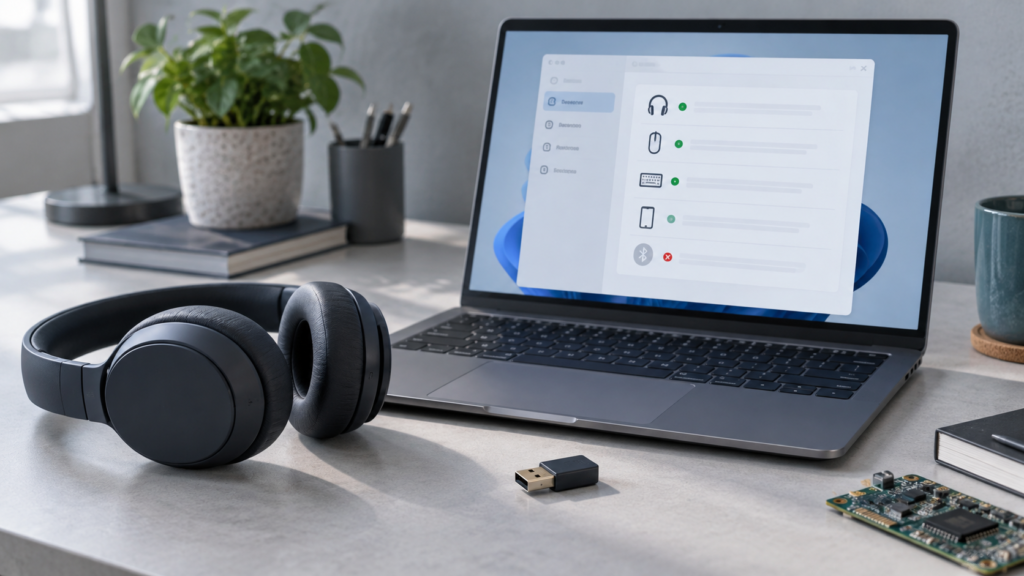
If Bluetooth vanished after a Windows update, first identify whether the toggle is missing, the adapter is gone, or only one accessory stopped connecting. The timing is a clue—not proof that the update caused the problem.
- Separate a missing Bluetooth control from a pairing or audio problem; they point to different checks.
- Start with a complete shutdown, airplane mode, the Windows troubleshooter and Device Manager.
- If the issue began after a driver change, use the PC maker’s driver or a supported rollback—not a third-party driver updater.
- Recent 26H2 forum complaints are anecdotal; Microsoft’s release-health page is the source for confirmed update issues.
The most alarming version of this problem is also the most specific: the Bluetooth button disappears from Quick Settings and Settings, and headphones, a mouse or a keyboard will not connect. A less serious symptom is a single accessory that refuses to pair while the Bluetooth control remains present. A third possibility is that the accessory connects but has no sound. Treating all three as “Bluetooth is broken” leads people to remove devices, reinstall Windows or buy hardware before they know which layer failed.
Users have recently asked whether Windows 11 version 26H2 is responsible for lost Bluetooth. Community posts are useful signals about real frustration, but several different PC models and driver stacks can produce similar symptoms. Unless Microsoft or the PC maker identifies a confirmed compatibility issue for your configuration, do not assume a system update is the cause. Our 26H2 rollout report explains why timing alone is not proof.
First identify which Bluetooth problem you have
| Symptom | What it suggests | Start here |
|---|---|---|
| Bluetooth toggle is missing or greyed out | Adapter, driver or firmware may not be available to Windows. | Full shutdown, Device Manager and the PC maker’s driver page. |
| Toggle is present, but one device will not pair | The accessory may not be in pairing mode, charged or discoverable. | Accessory reset and Windows’ pairing troubleshooting. |
| Device says connected but audio is silent | Windows may have selected another output or input profile. | Sound output and app-specific device selection. |
| Bluetooth works, then drops repeatedly | Power management, distance, interference, battery or driver instability may be involved. | Test close range, a charged accessory and one controlled power setting. |
Try the low-risk checks first
- Save work and perform a full shutdown. If the toggle is missing, Microsoft’s disappearance guide recommends holding Shift while choosing Start → Power → Shut down, waiting about a minute after the PC is off, then turning it on again. This is different from repeatedly restarting; it can reset hardware state on some systems.
- Check Airplane mode. Open Quick Settings with Windows + A and confirm Airplane mode is off. On some laptops, a physical wireless switch or function-key control may also disable radios.
- Check the accessory itself. Charge it, turn it off and on, put it into pairing mode, and disconnect it from a phone or other computer if it automatically reconnects there. Move it close to the PC for the test.
- Run Windows’ built-in troubleshooter. In Windows 11, open Get Help and run the Bluetooth troubleshooter, or go to Settings → System → Troubleshoot → Other troubleshooters and run Bluetooth if that option is shown.
- Remove only the affected pairing. If the Bluetooth control works and one accessory is stuck, remove that device from Bluetooth & devices and pair it again. Do not erase every saved device before checking whether the adapter itself is present.
When the Bluetooth toggle is gone
Open Device Manager from Start. Expand the Bluetooth section and look for an adapter name that may include “Bluetooth” or “Radio.” If the section is not visible, choose View → Show hidden devices, but treat a greyed-out entry as a clue rather than a working adapter. Also look under Network adapters or Other devices for a device with a warning icon. The exact name depends on the manufacturer, and a laptop may combine Wi‑Fi and Bluetooth on one internal card.
If the adapter appears, open its Properties and check the Device status message. Windows may report a driver error, or the device may be disabled. If the status is normal, check whether Bluetooth reappears after the full shutdown and whether airplane mode is off. If Device Manager shows an error, copy the code and search the support page for the exact PC model; do not guess at firmware changes based on the code alone.
Windows Update can offer optional drivers, but the newest generic driver is not always the right one for a particular laptop. Check the PC manufacturer’s support page by model or service tag, then compare the Bluetooth or wireless driver version and release notes. Install only a driver intended for that model and Windows version. Avoid “driver fixer” downloads that promise to update dozens of devices: they can install the wrong package and make it harder to roll back.
If it worked before a specific driver update
When the adapter remains visible and the problem began immediately after its driver was updated, Device Manager may offer a rollback: right-click the adapter → Properties → Driver → Roll Back Driver. The button may be unavailable if Windows has no previous package to restore. If you choose this path, note the current version first and restart normally afterward. Do not uninstall the device repeatedly; removal can leave Windows dependent on a driver download you cannot reach if Wi‑Fi also fails.
For Bluetooth that disappeared after a Windows feature update, start with the PC maker’s guidance and the latest compatible driver. Microsoft lists optional manufacturer firmware as another possible fix in some cases, but BIOS or UEFI changes deserve extra care: confirm the exact model, use stable power and follow the manufacturer’s instructions. If you are unsure, contact the maker instead of experimenting with firmware toggles.
If Bluetooth connects but will not behave
For silent headphones, click the speaker icon and choose the correct output device. Then check Settings → System → Sound and the audio device selected inside the specific meeting, music or game app. Some headsets expose separate playback and hands-free microphone modes. A meeting app may switch to the microphone profile and change sound quality; test another application before changing drivers.
If devices repeatedly disconnect, test with the accessory charged and near the PC, and temporarily remove nearby USB 3 devices or hubs. Microsoft notes that unshielded USB 3 equipment can interfere with some Bluetooth connections. On a laptop, compare behavior with battery saver or energy saver enabled and disabled, changing only one setting at a time. Do not turn off every power-management feature permanently just because one test works; record the result and look for a model-specific fix.
How to tell whether the adapter or accessory failed
If the accessory pairs with a phone but not the PC, the PC’s adapter, driver or Windows pairing state is more likely than a dead accessory, though that test is not conclusive. If several known-good Bluetooth devices all fail on the PC and the toggle is absent, investigate the PC side. Conversely, if the PC can connect to another device but one headset fails everywhere, reset or service that accessory using its manufacturer’s directions.
A small USB Bluetooth adapter can be a useful diagnostic on a desktop, but it is not the first fix for an internal laptop adapter that may simply need a driver or firmware reset. Before buying one, confirm that the adapter supports your Windows version and the accessory’s needs. If you test with a dongle, disable or disconnect the internal adapter only according to its maker’s instructions so that two radios do not compete for the same device.
When to stop and ask for help
Contact the PC maker if Bluetooth remains missing from Device Manager after a full shutdown and the correct driver install, especially if Wi‑Fi disappeared at the same time. A shared wireless card, antenna connection or firmware state may need model-specific diagnosis. If the computer is managed by work or school, ask IT before installing a driver or updating BIOS; device policy and encryption recovery may be involved.
When you report the issue, include the PC model, Windows edition/version/build from winver, the date the problem began, the adapter name and the Device Manager status code. Mention whether the problem affects all Bluetooth devices or only one and whether Wi‑Fi also changed. That evidence is more useful than simply saying an update “killed Bluetooth.”
Bottom line
Start by distinguishing a missing adapter from a failed pairing, then use a full shutdown, Windows’ troubleshooter and the exact manufacturer driver. Keep community reports in perspective and avoid aggressive driver utilities or firmware edits. A careful diagnosis protects both your working devices and the recovery path if the wireless adapter shares hardware with Wi‑Fi.
Sources and further reading
- Microsoft Support: fix Bluetooth disappeared in Windows.
- Microsoft Support: fix Bluetooth problems in Windows.
- Microsoft Support: update or roll back Bluetooth drivers.
- Recent Windows Update community discussion — anecdotal reports, not confirmation of cause or prevalence.